Defining Note Attributes
Auxiliary note attributes may be defined in the Note Service for various purposes, including customized note filtering. Note attributes are first defined in the Note Service for an entire Note Service. Once they are defined, such attributes may have values assigned to them on a note-by-note basis. Only those attributes defined for the applicable Note Service appear on the Attributes page of an individual note.
See also Assigning Note Attribute Values.
To Define Note Attributes
- Using CygNet Explorer, right-click in the Note service pane, then click Configure Attributes. A dialog box like the following appears:
|
Note Attributes |
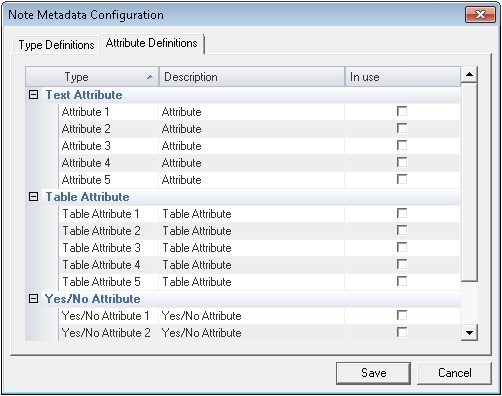
- Click the Attribute Definitions page, then click Edit.
- Assign attribute, table attribute, and yes/no attribute descriptions for those fields you want to become available to notes. See below for special instructions about table attribute entries.
- For each attribute you want to activate, check the corresponding In use box. Your dialog box might look something like this:
|
Attribute Definitions |
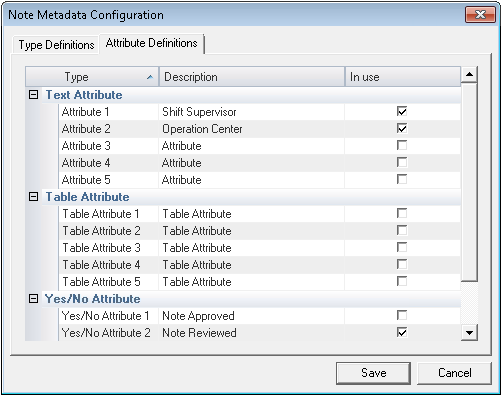
- When you are done, click OK to save and exit. Only those attributes defined for the applicable Note Service appear on the Attributes page of an individual note.
Defining Table Attribute Entries
At this time, table attributes are activated for a Note Service on the Attribute Definitions page discussed above. You may also enter a table attribute description there. However, you must configure table attribute entries in the Table Reference Service (TRS) in order for them to become available for use.
To Define Table Attribute Entries in the TRS
Note: The following procedure does not require notes to exist in a given Note Service.
- Using CygNet Explorer, go to the TRS on the same site as the relevant Note Service.
- Right-click in the TRS pane and click New.
- In the New Table Entry dialog box that appears, enter a Table Name. Available TRS table names for note table attributes are as follows:
- Table Attribute 1: SYSNOTT1
- Table Attribute 2: SYSNOTT2
- Table Attribute 3: SYSNOTT3
- Table Attribute 4: SYSNOTT4
- Table Attribute 5: SYSNOTT5
- Enter both a Table Entry name and a Description, and click OK. To be available for use, note tables must include at least one entry.
- Repeat steps 2-4 until all entries for a table are created.
- Repeat steps 2-5 for each new table until all entries for each table are created. Table entries may now be assigned in individual notes.


