Using a Trend Tool
Note: The Trend Tool requires Microsoft .NET Framework in accordance with CygNet system requirements. If you plan to associate a Trend Tool with a Note Feed Tool, it must be a Studio-wrapped Trend Tool, the Note Feed Tool must be a Studio-wrapped Note Feed Tool. Studio-wrapped tools are those available by default on the tool palettes. If you plan to use a Note Feed Tool without a Trend Tool, the Note Feed Tool requires both NoteFeed.dll and CxTrend.ocx. See the CygNet v9.8 System Requirements for more information.
You can create, display, and edit notes from a Trend Tool. If you create a new note from a Trend Tool, the note is stored in the applicable Note Service. If a series on a Trend Tool has a note associated with it and the note is within scope, the note is represented by a note label on the Trend Tool unless the note has otherwise been filtered out. A note can either be a point-in-time note or a ranged note. Point-in-time notes are notes associated with a single date and time. Ranged notes include both a start and end time, which means that they encompass a span of time. Both note types can be associated with facilities and points.
|
Click the thumbnail to see |
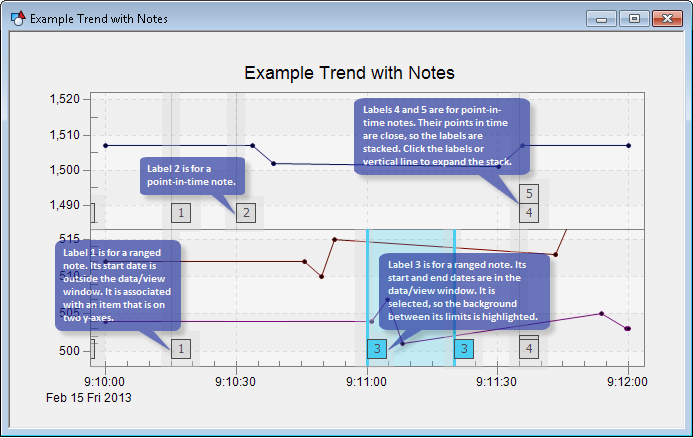
Only notes within a Trend Tool's data/view window are assigned numeric IDs; these are considered in scope. The earliest in-scope note gets the lowest number. Each in-scope note is part of an index that numbers from 1 - 99. Notes on a Trend Tool that refer to the same Note Service record share the same numeric ID. The numeric IDs of in-scope notes persist until a refresh occurs. Refresh can occur in a number of ways, including a user-requested restart or an auto-extend refresh. Upon refresh, if notes fall out of or come into scope, renumbering of the displayed notes occurs. Zooming within a data/view window does not renumber notes.
To View In-Scope Notes
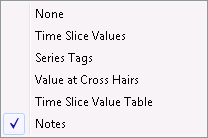
To view all in-scope notes for a Trend Tool, right-click on a trend, click Display Information, and click Notes. The tool's note display capability can be toggled on or off, but notes can be created regardless of the display mode enabled.
|
Display Information Options |
See also CygNet Studio – Configuring Display Information.
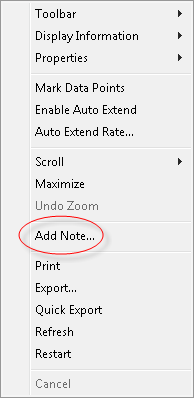
To add a note directly from a Trend Tool, right-click the Trend Tool and click Add Note. The dialog box that opens enables you to create a new note.
|
Trend Context Menu |
Default note associations are pre-added for all notes created from a Trend Tool. The default associations are a collection of all points and facilities for all series in the selected axis group. If you right-click directly on a series, the default associations that appear on the Associations page are only those applicable to that series. If you do not right-click directly on a series, the default associations that appear on the Associations page are only those applicable to that y-axis. Merely remove the association(s) not relevant to your note. If the Add Note option on the context menu is dimmed, you've right-clicked outside of a y-axis with a series.
The new note's default Start Time reflects where on the x-axis you right-clicked.
Note: The EventNoteCreated event allows interaction with annotations on a trend in Run mode. The event can be run before a note is created when selecting Add Note. The ShowNoteEditor parameter is available to suppress the invocation of the standard Note Editor allowing a custom CygNet Studio screen to be displayed when the event is fired.
To Edit a Note
To edit a note from a Trend Tool double-click the note. The dialog box that opens enables you to edit the note.
Note: The EventNoteEdited event allows interaction with annotations on a trend in Run mode. The event can be run before a note is modified by double-clicking a trend annotation. The ShowNoteEditor parameter is available to suppress the invocation of the standard Note Editor allowing a custom CygNet Studio screen to be displayed when the event is fired.
See also CygNet Studio – Using the Trend Tool in Run Mode.


