Configuring Blackouts
Blackouts are configured periods of time during which selected scheduled GNS record ID recipients are not sent notification messages. Although the scheduled blackouts are used by both the GNS and the MSS, the MSS is the repository for all blackouts information in CygNet.
In the GNS, blackouts are assigned to selected recipients within a GNS record, to disable messages from being sent to those selected recipients during specified time periods. Time and date ranges are easy to customize when creating new blackouts. This is generally done in the MSS. See Scheduling a Blackout in the Scheduler section for more information.
Although blackouts are generally scheduled in the MSS, they can also be assigned in the GNS when setting up or editing a notification address. For a given GNS ID, access the Notification Address dialog box and modify the Blackouts section of the dialog box. See Configuring an Address Record for more information.
|
Blackout Configuration |
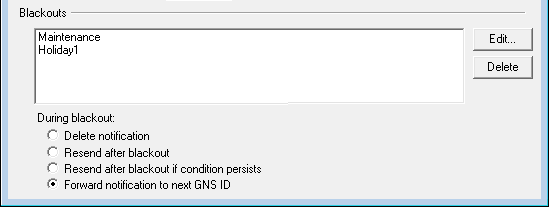
During a blackout the notification will be handled in the following manner:
- Delete notification — select to delete the notification during the blackout.
- Resend after blackout — select to resend the notification after the blackout period expires, even if the alarm condition no longer persists.
- Resend after blackout if condition persists — select to resend the notification after the blackout period expires, only if the alarm condition persists.
- Forward notification to next GNS ID — select to explicitly forward the notification to the next GNS ID record to notify (if Acknowledgment is required) during a blackout period.
The selected option applies to all blackouts assigned to the selected notification recipient.
To Configure a Blackout for an Address Record
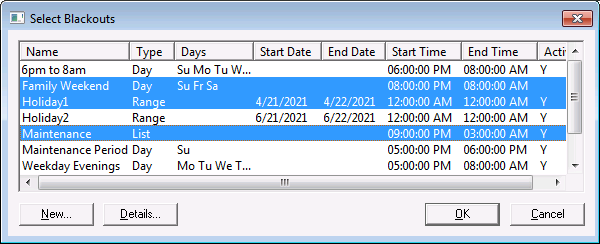
- Click the Edit… button in the Blackouts area to display the Select Blackouts dialog box. This box lists all of the blackouts that have been created for the system. If the box is blank, no blackouts have been created.
- Click Details… to view the details of a blackout.
- To add a new blackout, click the New… button. See Scheduling a Blackout in the Scheduler section for more information.
- To apply a blackout to the recipient, select the blackout and click OK. You can multi-select blackouts by holding down Ctrl and clicking the blackouts.
|
Select Blackouts |