Configuring a GNS Record
To Configure a GNS Record
- Using CygNet Explorer, right-click in the GNS pane and select New.
- Type the ID and Description for the record.
- In the Type box, select the appropriate record type: Event, Group or Address. See Notification Record Types for more information.
- Create and assign appropriate Category. Categories are available for additional sorting and are optional.
- Select the required Application and Event for Database Security to determine who can edit this GNS record.
- Select the required Application and Event for Queue Security to determine who can manage this notification in the GNS queue.
- Indicate if the notification will be allowed to timeout of the GNS queue and the number of minutes.
- Click to indicate the status of the GNS record.
- Click on the Addresses page to configure the recipient of this notification. See Configuring an Address Record for more information.
- Click OK to save the notification record.
|
GNS Record Notifications page |
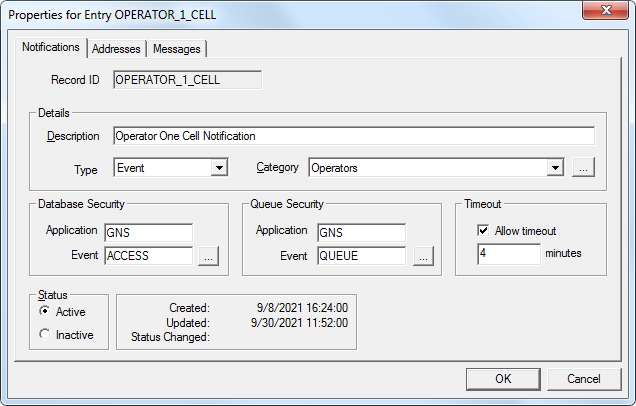
The properties on the Notifications page are described in the following table.
| Property | Description |
|---|---|
|
Record ID |
The GNS ID of the notification record. Can be free-form text field (up to 20 characters). |
|
Description |
A free-form description of the record. |
|
Type |
A GNS notification record can be one of four types: Event, Group, Address, or (Unspecified). See Notification Record Types. |
|
Category |
Optional. Used for sorting. |
|
Database Security |
The name of the security Application and Event for the record. This administrative security governs who can edit the record. Click … to select a security setting. See the GNS security reference for more information. |
|
Queue Security |
The name of the security Application and Event for the record when it is in the GNS queue. This operational security governs who can acknowledge the notification using CygNet Explorer or delete the record’s notification from the queue. Click … to select a security setting. See the GNS security reference for more information. |
|
Timeout |
Specifies the maximum amount of time (in minutes) a notification will reside in the queue. Select Allow timeout to enable and specify the number of minutes for the timeout. |
|
Status |
Indicates if the record is Active or Inactive. A status history is also provided. |


