Configuring a PIN
In order to acknowledge notifications from the GNS service, you must configure the users who are permitted to send acknowledgment emails (and SMSs). Each user requires a PIN and email address to authenticate the user to the system when acknowledging a notification via email or text message.
Users can configure up to two email addresses. Either email address can be used to accommodate an SMS gateway address for the sending of text messages back to the CygNet system, for example, number@txt.att.net or number@vtext.com.
Note: Some SMS providers send email replies via the email address tied to the provider's account. You will need to add that email address to the GNS PIN Manager list and test how your provider handles email replies.
You must have at least Level 5 authorization (Admin) for the GNS service’s GNSPIN event in order to view and edit the properties of a user record. See the GNS security reference for more information.
|
GNS PIN Manager |
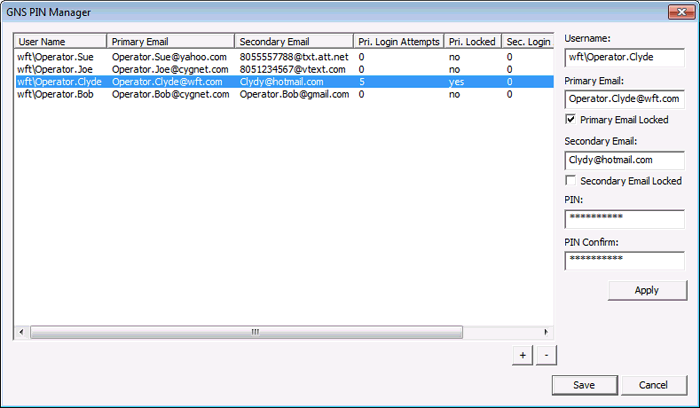
To Configure GNS Users
All GNS users who want to acknowledge notifications by email must be configured in the GNS PIN Manager. Perform the following steps to configure a GNS user, with up to two email addresses, and a PIN:
- Using CygNet Explorer, right-click in the GNS pane and select View PIN Manager. The GNS PIN Manager dialog box will display all configured users.
- Click on any row to populate the properties on the right and click Edit.
-OR-
Click Edit and to add a new user.
 - Type the Username, Primary Email address, Secondary Email address (if desired), PIN, and PIN Confirm.
- Click Apply to apply the changes to the list.
- Click Save to save the properties for the user to the GNS metadata file.
- Click Close to close the PIN Manager.
To Unlock a Locked Email Address
An email lockout feature is provided to prevent an unknown user from overloading the system, or to block access to the system by an unauthorized user. See Email Lockout for more information about this feature and how it is configured. An unknown or unauthorized user will be prevented from acknowledging notifications by email after 5 unsuccessful attempts. The default lockout is for 30 minutes, after which the user is again able to attempt acknowledgment by email. Both of these values (number of attempts before lockout and lockout duration) are configurable.
Perform the following steps to unlock an email address before the lockout expires:
- Using CygNet Explorer, right-click in the GNS pane and select View PIN Manager. The GNS PIN Manager dialog box will display all configured users.
- Click on the row containing the locked user and click Edit.
- Uncheck the Locked check box.
- Click Apply to apply the changes to the list.
- Click Save to save the properties for the user to the GNS metadata file.
- Click Close to close the PIN Manager.
GNS Metadata File
The properties for each user (username, email addresses, and encrypted PIN) are saved in a metadata file named GnsAckFile.dat. This file, which is an XML file, is stored in the GNS folder. This is an important file and it will be backed up to the Backup root folder as part of the automatic backup feature in CygNet. The file will also be replicated as part of any service replication.
Only one user at a time can modify the contents of the GNS metadata file via the GNS PIN Manager. All changes made to the GNS metadata file are recorded in the Audit Service (AUD) and can be viewed in the AUD service pane as a NOTIFICATION_CHANGE.
GNS PIN Manager Properties
The properties on the GNS User Manager dialog box are described in the following table.
| Property | Description |
|---|---|
|
User Name |
Specify the username for the user who will be sending the acknowledgment email. |
|
Primary Email |
The primary email address of the GNS user. |
|
Secondary Email |
The secondary email address of the GNS user. Note: Either email address can be used for an SMS Gateway address, for example, number@txt.att.net, number@vtext.com. |
|
Pri. Login Attempts |
Indicates the number of unsuccessful login attempts for the primary email address. When this number reaches the number configured for the PIN_LOCKOUT_MAX_ATTEMPTS keyword, the user will be locked out. The default value is 5. |
|
Pri. Locked (Column) |
Indicates if the primary email address is locked out. See Email Lockout for more information. |
|
Primary Email Locked (Check Box) |
Click the check box to unlock this email address. Note: This check box is only for unlocking locked email addresses. It cannot be used to temporarily block a configured email address. |
|
Sec. Login Attempts |
Indicates the number of unsuccessful login attempts for the secondary email address. When this number reaches the number configured for the PIN_LOCKOUT_MAX_ATTEMPTS keyword, the user will be locked out. The default value is 5. |
|
Sec. Locked (Column) |
Indicates if the secondary email address is locked out. See Email Lockout for more information. |
|
Secondary Email Locked (Check Box) |
Click the check box to unlock this email address. Note: This check box is only for unlocking locked email addresses. It cannot be used to temporarily block a configured email address. |
|
PIN |
Specify a secure numeric PIN. Note: Pin must be numeric (0-9), between 1 and 72 characters long, no special characters are allowed, no spaces are allowed. |
|
PIN Confirm |
Retype the PIN. |
|
Apply |
Click to apply the changes to the list. |
|
|
Click to add a new user to the system. |

|
Click to delete an existing user from the system. |


