CygNet Notification Plugin Interface
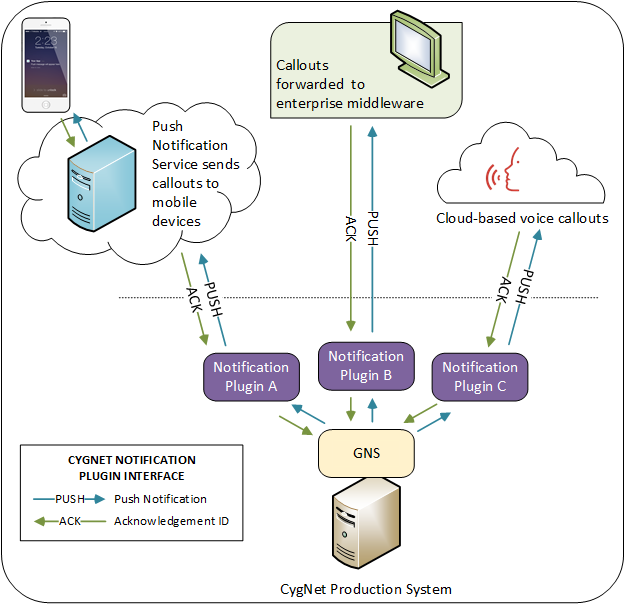
CygNet Software provides an extensible .NET "plugin" interface that developers may use to implement their own custom .NET assemblies to enhance the capabilities of the General Notification Service (GNS). Some plugin examples might include:
- a plugin that sends CygNet notification messages to a third-party push notification service, such as Microsoft Azure Push Notification Service, or Apple Push Notification Service, which in turn forwards the notifications to a mobile phone or tablet
- a plugin that forwards CygNet notification messages to third-party enterprise middleware
- a plugin that sends CygNet notification messages as cloud-based voice callouts
Notifications are configured in the Point Service (PNT), and triggered by the Current Value Service (CVS) during point processing as configurable bit values change. For bits that are configured to Report to GNS, when a bit value is set, the real-time record details are sent to the GNS so that it may begin the notification process. Any given notification may be sent to a number of configured recipients whose addresses are specified in the GNS.
Historically, GNS address type options have been static (Voice Address,Email Message, etc.), and all notifications have been transmitted by the GNS. CygNet administrators now have the ability to install and configure custom notification plugins, specify a new address type for the custom plugin, and configure a GNS notification record with the new address type. If a notification address is of the custom Notification Plugin Type, the callout message is passed from the GNS, through the custom plugin, and out to the recipient's address (phone number, email, or a custom address required by the installed plugin) for display on the recipient's device or computer. A given GNS may be configured to use multiple plugins and plugin address types.
Notifications processed via the plugin can be configured to require acknowledgment. The acknowledgment state will be returned, or not, based on the design of the plugin. If a plugin does allow acknowledgment for a notification, the acknowledgment ID (Ack ID) will be returned to the GNS when the call to the custom plugin .NET assembly returns. Alternatively, a plugin may be implemented to not send an acknowledgment for a notification back to the GNS.
In order to protect the GNS from potentially misbehaving plugins, the GNS does not interact directly with the custom plugin .NET assemblies. Instead, the GNS instructs an application called CygNotify.exe to send notifications to the custom plugins. In this way, if the custom plugin inadvertently causes an application to crash, only that instance of CygNotify will exit, while the originating GNS process will be unaffected.
The GNS plugin interface uses standard GNS security events. Configuration errors can be monitored via a system info item. The interface and supporting files will be fully replicated as part of any GNS replication process.
The following diagram illustrates the plugin interface with three hypothetical plugin samples:
|
Click the thumbnail to see a |
For more information, see the following subsections:
- Installing a Custom Notification Plugin
- Configuring the Notification Plugin Manager
- Configuring the Notification Plugin Address Type
- Acknowledging a Plugin Notification
- CygNotify Command-Line Options
- Monitor Plugin Errors and Validation State
Installing a Custom Notification Plugin
Installation of a custom notification plugin requires some manual steps for a CygNet administrator.
To Install a Notification Plugin
- Copy the plugin assembly file(s) to the CygNet\Services\GNS\Plugins\<plugin> directory. Each plugin requires its own dedicated directory and the path is always relative to the host GNS. The Plugins\ directory is created when the GNS starts.
- Copy the CygNet.API .NET files (listed below) to the CygNet\Services\GNS\Plugins\ directory. This step is not required if you are doing a new installation of CygNet.
- Verify that the CygNotify.exe is in the CygNet\Services\GNS\Plugins\ directory.
- Configure the plugin properties via the Notification Plugin Manager in the GNS, described below.
The following folders and files are required by the notification plugin process and are found in the CygNet\Services\GNS\ directory except where noted:
| Folder or File | Description |
|---|---|
|
PluginData\ and PluginData\temp\ |
A housekeeping directory with special permissions where the CygNotify process may read, write, and delete files as the plugin is functioning. |
|
Plugins\ |
The directory where all custom plugins are stored. |
|
Plugins\<plugin>\<plugin>.dll |
The directory where the custom plugin assembly file(s) are stored. Plugins may have custom configuration files, assembly dependencies, or other assets. Each plugin requires its own dedicated directory and the path is always relative to the host GNS. The default path is CygNet\Services\GNS\Plugins\. The Plugins\ directory is created when the GNS starts. |
|
<plugin>.dll |
The custom plugin assembly file(s). The path to the plugin, its Address Type, and other properties are configured in the Notification Plugin Manager in the GNS. See below. |
|
CygNet.API .NET libraries |
The most-current versions of the CygNet.API .NET libraries are required by the plugin. Notes: New Installation — The CygNet SCADA Services Setup program will automatically install all CygNet.API .NET library files to the GNS\Plugins\ directory. Upgrade — If you are upgrading, these files must be copied manually from the CygNet\Bin\ directory to the GNS\Plugins\ directory. See the |
|
CygNet.Notifications.dll |
A .NET assembly file that defines the CygNet plugin interface and describes the data that will be passed from the GNS through the plugin to the recipient. This file is stored in the GNS\Plugins\ directory; do not move or delete it. |
|
CygNotify.exe |
The GNS will spawn a CygNotify process for each plugin-type notification. This executable file is stored in the GNS\Plugins\ directory; do not move or delete it. Verify that this file is in the GNS\Plugins\ directory. See CygNotify Command-Line Parameters for details on running and validating a plugin from the command-line. |
|
CygNotify.exe.config |
The CygNotify.exe configuration file. This file is stored in the GNS\Plugins\ directory; do not move or delete it. |
|
DCLND.dll or DCLND64.dll |
One of the following files is required, depending on the version you are running:
|

Configuring the Notification Plugin Manager
Once the necessary plugin files are installed, configuration of each custom plugin is completed via the Notification Plugin Manager in the GNS.
|
Edit Notification Plugin |
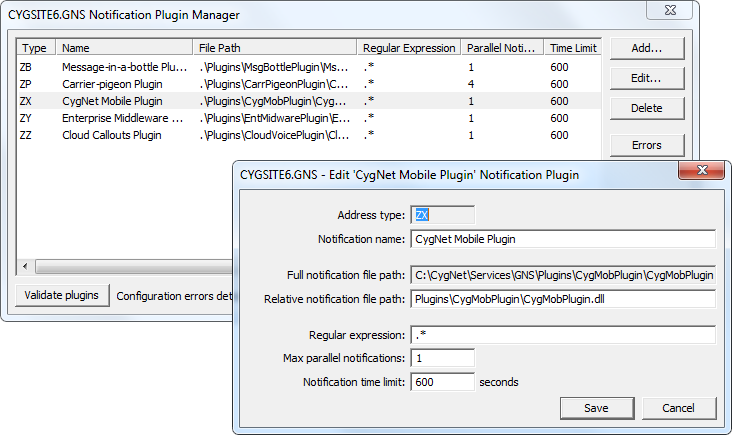
To Configure and Validate Custom Notification Plugin Properties
- Using CygNet Explorer, right-click in the GNS pane and select View Notification Plugin Manager. The GNS Notification Plugin Manager dialog box will display all configured plugins for this GNS.
- Click Add... to configure a new plugin, select a previously configured plugin and click Edit... (or double click), or click Delete to remove a plugin.
- For a new or existing plugin, set the address type, notification name, full and relative notification file path, regular expression, maximum parallel notifications, and notification time limit. Each field is defined below.
- Click Save to save properties for the plugin.
- Click Errors to show any configuration errors for a selected plugin.
- Click Validate plugins to validate the plugin configuration, verify that all required assemblies are in the specified location (including on a replicated site), and validate that the plugins and any dependencies can load.
- Click Close to close the GNS Notification Plugin Manager.
Note: See the GNS SVCINFO Security Event for information about security access levels for validating plugins immediately.
Notification Plugin Manager Properties
The properties on the GNS Notification Plugin Manager dialog box are described in the following table.
| Property | Description |
|---|---|
|
Address type |
The two-character address type associated with the plugin. The address type must start with "Z". |
|
Notification name |
The name of the plugin address type. This notification name is listed in the drop-down menu when configuring the address record type in the GNS. |
| Full notification file path |
This read-only field displays the full path to the directory where the plugin assembly file(s) are stored. |
| Relative notification file path |
The relative path to the directory where the custom plugin assembly file(s) are stored. Each plugin requires its own dedicated directory and the path is relative to the host GNS. The Plugins\ directory is created when the GNS starts. The default path is CygNet\Services\GNS\Plugins\. |
| Regular expression |
This field defines the acceptable address for the notification plugin as a regular expression. For example, just as the address for an Email message must be an email address, you can use a regular expression to enforce a rule for the notification plugin address. The default value is ".*" |
|
Max parallel notifications |
The maximum number of push notifications that can be processed at the same time. Accepted values are 1 - 8, with a default value of 1. |
|
Notification time limit |
The maximum amount of time (in seconds) the plugin has to handle the notification, to avoid negatively impacting other notifications. Accepted values are 60 seconds (1 minutes) - 3600 seconds (1 hour), with a default of 600 seconds (10 minutes). |
| Errors |
Click to show any configuration or validation errors for a selected plugin. |
| Validate plugins |
Click to validate the plugin configuration, verify that all required assemblies are in the specified location (including on a replicated site), and validate that the plugin and any dependencies can load. See Monitor Plugin Errors and Validation State below for related info items. |
Configuring the Notification Plugin Address Type
Once the plugin is configured in the GNS Notification Plugin Manager, the plugin address type and message is configured in the GNS record.
|
Notification Address |
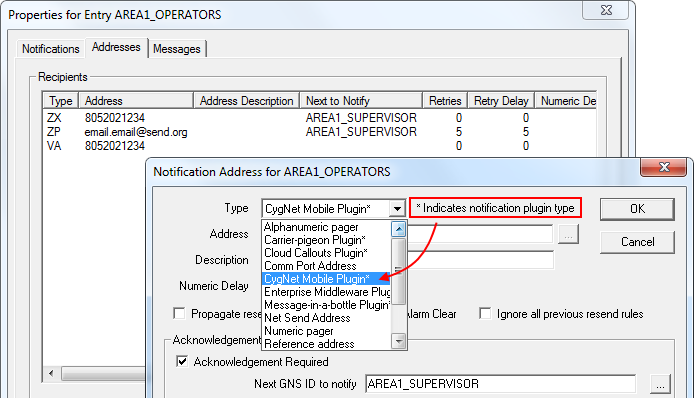
To Configure a Notification Message for Custom Plugin Address Type
- Using CygNet Explorer, right-click in the GNS pane and configure a new GNS record and description.
- Configure an Address Record.
- In the Type box, select the notification plugin type. The * indicates that the type is a notification plugin type.
- Configure the address of the recipient and any message handling rules (acknowledgment, resend, blackouts, rule propagation, report alarm clear), described here.
- Configure the notification plugin message.
- Click OK to save the recipient information.
- Click OK to save the notification record.
- Associate an event notification with the desired points’ appropriate configurable bits in the PNT.
Acknowledging a Plugin Notification
The standard acknowledgment mechanisms for CygNet notifications are available for notifications delivered by the notification plugin, including acknowledgment via:
- CygNet Studio screen
- GNS Queue in CygNet Explorer
- Text Message (SMS)
- Phone
Acknowledgment via email and SMS require some additional system configuration. See Acknowledging Notifications Via Email for more information.
CygNotify Command-Line Options
The CygNotify.exe process supports the following command-line parameters for running and validating the notification plugin.
| Parameter | Description | |
|---|---|---|
| /load_only |
/load_only verifies that the given plugin path points to a valid, loadable plugin. The plugin dll must be specified using the /plugin parameter. ExampleThe following command will run the plugin validation steps:
|
|
|
/p or /plugin |
/plugin specifies the path to the plugin dll. ExampleThe following command will run the notification plugin:
Note: The "=" between the "/p" and the "PathToPluginDll" is optional. |
|
|
/v or /validate |
/validate runs the plugin validation steps from the command line. The plugin dll must be specified using the /plugin parameter. ExampleThe following command will run the plugin validation steps:
|
Monitor Plugin Errors and Validation State
The following GNS system info items are available for monitoring the condition of the plugin:
- GNS_PLUGIN_CFG_ERRS (Nice name: Notif plugin cfg errors) displays the number of plugin configuration errors in your system
- GNS_PLUGIN_VAL_STATE (Nice name: Notif plugin val state) shows the plugin validation state and allows plugin validation to be run on-demand


