Configuring the ODBC Data Source Connection
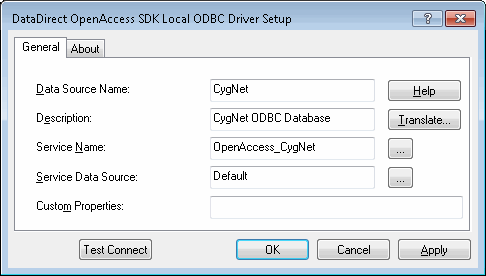
When you install the CygNet ODBC driver, a Data Source Name (DSN) called Default is added to your system. Upon initialization this DSN is configured to connect to all CygNet sites and services (Site.Service pairs) within the active CygNet domain. (You can later discover CygNet services from ODBC that were started after the applicable DSN was established.)
|
| Sample Default ODBC Driver Setup |
Filtering Services
Discovering many sites and services at once might slow performance. To improve performance and reduce connection time, you can create and apply service filters. Service filters constrain the initial set of services used to generate the schema.
You can create additional DSNs to connect to specific sites and services, combinations of sites and services, or to no services at all. For example, create a DSN that connects to only UIS service types (*.UIS), to a single site (MYSITE.*), or to no services by using the <NOSERVICES> filter. Apply a filter only to affect connections at ODBC initialization. After ODBC start up, you can search for information from any site or service on the active domain. When you successfully communicate with a new service, its tables are dynamically added to the schema.
To Create New DSNs
- Open the ODBC Data Source Administrator from the Windows Administrative Tools folder.
- If you are using a 64-bit machine with a 64-bit ODBC driver, open the ODBC Data Sources (64-bit)
- If you are using a 64-bit machine with a 32-bit ODBC driver, open the ODBC Data Sources (32-bit)
- In the dialog box that appears, do the following.
- Select the System DSN page and click Add.
- Select CygNet ODBC Driver and click Finish.
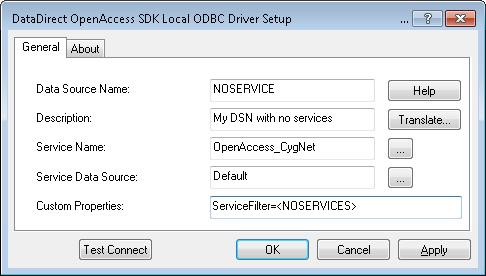
- In the DataDirect OpenAccess SDK Local ODBC Driver Setup dialog box that appears, do the following.
- In the Data Source Name box, type a name for the connection. For example, type NOSERVICE.
- In the Description box, type a description for the connection. For example, type My DSN with no services.
- Beside the Service Name box, click ... to browse, select OpenAccess_CygNet, and click OK.
- Beside the Service Data Source box, click ... to browse, select Default, and click OK.
- In the Custom Properties box, type a filter value to apply to this DSN, in the format ServiceFilter= and add the applicable string. The filter is comma-separated and supports the use of wildcards (*). For example, ServiceFilter=MYSITE.*, ServiceFilter=MY*.*, or ServiceFilter=<NOSERVICES>.
- Click OK to save your settings and create the new DSN.
|
ODBC Driver Setup |
- In the ODBC Data Source Administrator dialog box, click OK.
Using Script to Modify Service Filter Settings
You can modify service filter settings using script, to enable screens to override the configured service filter associated with the DSN.
Example
The driver connects to MYSITE.FAC, regardless of the service filter specified in the DSN settings.
|
using (DbConnection conn = new OdbcConnection("DSN=CygNet;ServiceFilter=MYSITE.FAC")) { conn.Open();
[… …] } |


