Installing and Starting the CygNet OPC Server
This topic describes the following:
- Install the CygNet OPC Server
- CygNet OPC Server Name
- Start and Stop the CygNet OPC Server
- CygNet OPC Server Security
- Register Points with CygNet OPC Server
Once installed use the OPC Check utility to interact with the CygNet OPC Server.
Install the CygNet OPC Server
The CygNet OPC Server can be installed using the CygNet Client Installer (CInstall.exe) utility; the application can be found under SUPPORT. The CygNet Client Installer sets up integrated version management to ensure that you have the latest version of the application files and that all files are registered properly. See CygNet Client Installer for more information.
Note: The CygNet OPC Server now includes updated OpcFoundation OPC Core Components and will upgrade these system-level components automatically when you version manage the executable. See OPC Core Components for more information.
The following files are necessary for installing the CygNet OPC Server.
Found in the APPS\SUPPORT folder and installed to the CygNet\Support\CygNetOPC folder:
- CygNetOPC.exe
- CygNetOpc.rsp
- RegOpc.bat
Found in the APPS\SUPPORT folder and installed to the Windows\SysWOW64 folder:
- NDIErrors.dll
- NDIServer.dll
- Opccomn_ps.dll
- Opcproxy.dll
To Install the CygNet OPC Server Using the CygNet Client Installer
-
Open the CygNet Client Installer (Start Menu > All Programs > CygNet > CygNet Client Installer). The CygNet Client Installer/Launcher dialog box will be displayed.
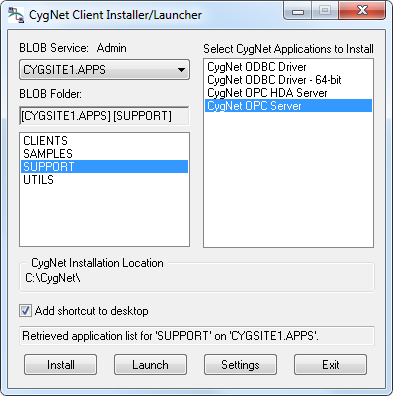
CygNet Client Installer/Launcher
- On the Blob Service: Admin drop-down menu, select the APPS Service.
- In the Blob Folder: list select Support.
- In the Select CygNet Applications to Install list select CygNet OPC Server.
- Click the check box adjacent to Add shortcut to desktop to select/clear this feature.
- Click Install. A confirmation message will be displayed asking if you want to start the application.
- Select Yes to launch and register the CygNet OPC Server.
Note: The optimal server configuration is to have the CygNet OPC Server version managed on the same machine where the OPC client is installed so that the CygNet OPC Server can communicate with CygNet via CygNet messages, but is also local so the OPC client can connect and communicate directly. The CygNet OPC Server is version managed via the batch file (RegOPC.bat) which registers the server in place.
If your CygNet\Support\CygNetOPC folder does not have the version management files required to install the OPC Server (.rsp and .app files), contact CygNet Support.
CygNet OPC Server Name
The name of the CygNet OPC Server is CygNet.OPCServer.1.
Start and Stop the CygNet OPC Server
The CygNet OPC Server is a COM application so it runs on demand once it has been registered. When an OPC client starts to interact with the CygNet OPC Server it will be automatically launched by Windows. It will shut down when not in use after 60 seconds. You can tell it's running because the CygNet OPC Server tray icon  will display.
- Starting the CygNet OPC Server — The CygNet OPC Server automatically starts when a client connects to it. When the server is running, the CygNet OPC Server icon is displayed in the task bar.
- Stopping the CygNet OPC Server — The server will continue to run as long as there is a valid connection. If the server does not detect a connection for 60 seconds, it will close. You can also manually stop the server by right-clicking on the server icon in the task bar and then clicking Shutdown Server.
The CygNet OPC Server tray icon has three menu options:
- Open — Select to open the CygNet OPC Server dialog box, which shows information such as how many points have been added and other statistics about the server. See CygNet OPC Server Statistics.
- Shutdown Server — Select to force a server to shutdown. The forced shutdown will fail if an OPC client is currently connected to the server.
- About CygNetOPC — Select to open the About CygNet OPC Server dialog box, which shows where the log file is located. On the Client Settings dialog box you can enable the LOG_MIN_TRACE log setting to get more detailed information in the log file about actions and failures. Be warned that this setting will up the log file quickly.
CygNet OPC Server Security
The CygNet OPC Server itself does not have security. However, security is checked for the services from which data is retrieved. These are the current value services; the PNT and the CAS. The login credential on the client computer must have at least "Read" authorization for the services.
See Security for more information about setting up general CygNet security.
Register Points with the CygNet OPC Server
The following CygNet tag string formats are supported for the CygNet OPC Server:
| CygNet Tag String Format Type | Accepted OPC Identifier Format |
|---|---|
|
Tag String |
Site.Service.PointID |
|
Long Tag String |
Site.Service:LongID |
|
Full Tag String |
Site.Service.PointID:LongID |
|
Facility Tag String |
Site.Service::Facility.UDC |
|
External ID Tag String |
Site.Service:::MixedCaseExternalId{;PROPERTY} |
Note: The most efficient way to register tags with the CygNet OPC Server is to provide the tag format as either Site.Service.PointID;<optional_property> or Site.Service:LongID;<optional_property>. Providing other tag formats will incur some additional messaging to the PNT service to resolve the tag to the appropriate CygNet point.
See Using External ID-based Tags in the OPC Item for more information about using optional point properties in the OPC tag format.
See Omitting the Site.Service Specifier in the OPC Item for the CygNet OPC Server for more information about omitting the Site.Service specifier from an OPC request.


