Filtering and Viewing Points
What you view in the Point Configuration Manager utility is configurable to an extent, to show the most useful information for your current point management purposes: you can view a user-filtered point list set and optionally add point property columns to also appear in the results list. This helps you quickly compare configurations of multiple points. Then you can perform actions or apply changes to the set of points or to a subset of those points. Use the column headings to sort the results list as desired.
Any time you change the point filter or the point properties list, click Refresh to update your results list view.
Filtering the Point List
Use the available filtering options to limit what is shown in the points results list. Options are described in the following table.
| Filter Option | Description |
|---|---|
|
Service |
Type a known service name into the text box in the format SITE.SERVICE, or make a selection from the available services listed in the drop-down menu. |

|
Click |
| Filter | |
|
... |
Click ... adjacent to the Filter text box to access the Point Filter Options dialog box, containing the filter options listed below. The options are presented in the format <Site.Service>:<Facility>/<UDC> and can be used concurrently. |
|
Site.Service |
Filters the view to only show points with the specified Site.Service |
|
Facility |
Filters the view to only show points with the specified Facility |
|
UDC |
Filters the view to only show points with the specified UDC |
|
Clear |
Clears the previously provided filter fields and returns to the default multiple character wildcard (*) values of * : * ? * for each filter element |
|
OK |
Sets the filter and populates the Filter text box using the provided fields, to show what filter will be applied when the Apply button is used |
|
Apply |
Click Apply to filter points in the selected service by the configured filter string, and display results in the point list Note: Click Columns to configure additional point attributes to be displayed in the results list. |
|
Only show duplicate facilities/UDCs |
Click the check box to select/clear the option to only show points that have duplicate Facility/UDC assignments Note: This option cannot be used in conjunction with other filter options |
|
Click the thumbnail to see |
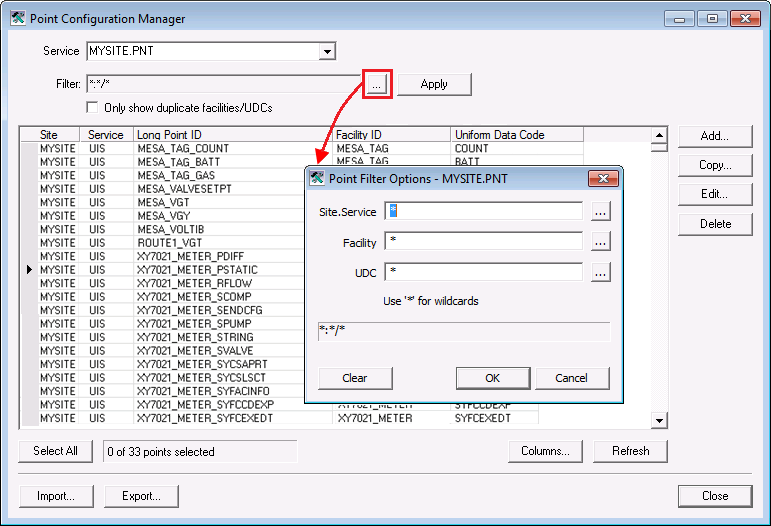
Note: The Site.Service, Facility, and UDC options allow only a single entry. You can use a wildcard (*) to show all, or you can use a wildcard in conjunction with text.

Viewing Additional Point Properties
The list of point properties shown in the main screen always displays the fixed columns for Site, Service, Facility ID, Uniform Data Code, and Long Point ID. Additional property attributes from a point configuration record or a point current value record may be selected and displayed as a data column in the utility. To include additional point property columns in the display, use the following procedure.
To Display Additional Property Columns
- In the Point Configuration Manager utility, click Columns, or right-click in the column header row and click Add Columns, to access the Choose Property Columns dialog box.
|
Choose Property Columns |
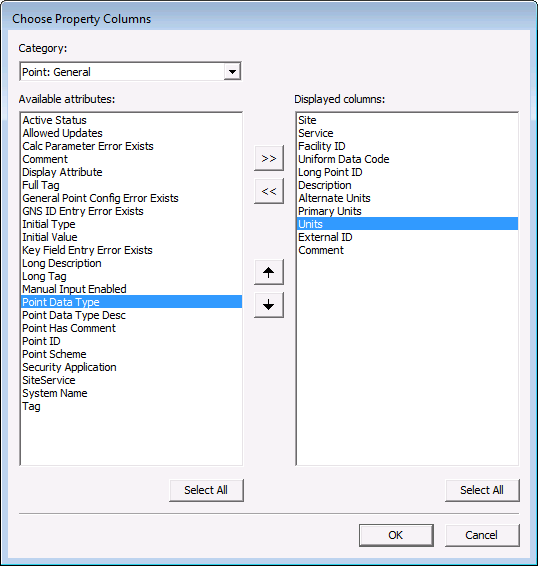
- In the dialog box, select any additional properties you'd like to add to the point results list in the Point Configuration Manager. All selections will appear as additional columns.
- From the Category drop-down menu, select a category of attributes to view its list of available property selections in the Available attributes list.
- From the Available attributes list (left pane), click (or Ctrl+click for multiple selections) desired properties to display as new columns, and then click >> to move the selection(s) to the Displayed columns list (right pane). Use the Select All button to include all available attributes listed. Once committed, these selections will be displayed as additional columns in the utility results list. Click << to move selected attributes back to the selection list if desired.
- In the Displayed columns list (right pane), the order of the property attributes in the list will be the initial order of the columns displayed in the results list. Optionally select attributes to reorder, and click the up/down arrows to adjust the order of the listed attributes as desired.
- Repeat steps a - c until all selections have been made.
- Click OK when done.
- In the utility, the view now includes the newly added columns and their values.

