Point Configuration Manager Utility
Point Configuration Manager is a utility provided by CygNet Software to perform the following point related tasks for a specified PNT service.
- Filter points based on given Site.Service, Facility, and/or UDC (Uniform Data Code) values
- Detect points with duplicate facilities or UDCs
- View points and selected point properties in list form
- Add new points
- Copy points, singly or in bulk
- Edit points, singly or in bulk
- Delete points, singly or in bulk
- Import points from a .csv (comma-separated values) file
- Export points to a .csv file
The Point Configuration Manager utility file (PointCfgMgr.exe) is stored in the CygNet\Utilities directory on your host server.
Alternatively, some utility functions can be performed using command-line options. See Using Command-Line Parameters for more information.
64-bit Point Configuration Manager Utility
A 64-bit version of the Point Configuration Manager utility (PointCfgMgr64.exe) is also available. It can handle larger data sets than can be handled by the 32-bit utility, even though the Point Service is a 32-bit compiled service. The 64-bit utility can be installed using the CygNet Client Installer: select Point Configuration Manager - 64-bit from the APPS/UTILS folder.
Starting Point Configuration Manager
Installing and Launching
To install and launch (start) the application or utility using version management:
- Use CygNet Client Installer to install and launch the application. Once installed you can use CygNet Client Installer to start the application.
-OR-
- If previously installed, click Start > All Programs > CygNet > <name of the application or utility> or double-click the desktop shortcut.
Alternatively, browse to the CygNet\Utilities directory using Windows Explorer and double-click the program icon. You can also start an application or utility from a command line. These methods do not provide version management.
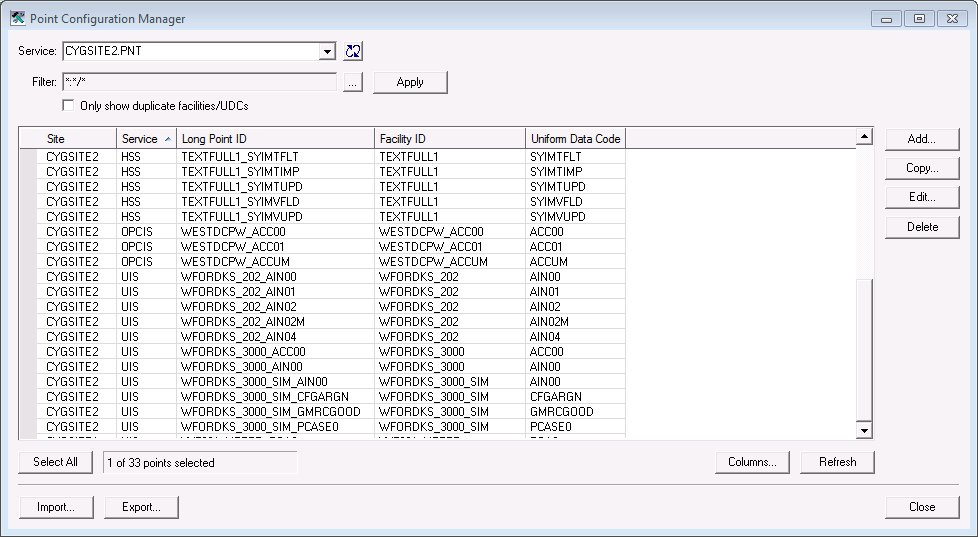
Open the utility to access the Point Configuration Manager dialog box.
|
Click to see a sample |
Properties - User Interface
The following properties appear on the opening page of Point Configuration Manager utility.
| Property | Description |
|---|---|
|
Service |
Select the Site.Service to view |
|
Filter |
Filter the point list results, as typed into the text box, or as configured via the Point Filter Options See Filtering and Viewing Points for more information. |
|
Apply |
Apply the configured filter and retrieve results See Filtering and Viewing Points for more information. |
|
Only show duplicate facilities/UDCs |
Click the check box to select/clear the option to only show points with duplicate facilities or UDCs in the results list See Filtering and Viewing Points for more information. |
|
[Results list] |
Lists the points in the selected Site.Service, using configured filters to display desired properties See Filtering and Viewing Points for more information. |
|
Add |
Access the New Point dialog box to add points in the selected Site.Service See Adding Points for more information. |
|
Copy |
Access the Facility Point Copy dialog box to copy the selected point configuration data for use in other destinations See Copying Points for more information. |
|
Edit |
Access the Edit Point Attribute dialog box to modify a single attribute for all selected points See Editing Point Properties for more information. |
|
Delete |
Delete all selected points Warning: Be certain of your selection before deleting the point(s). There is NO "undo" for this action. See Deleting Points for more information. |
|
Select All |
Select all results in the points list |
|
[Selection tally] |
Displays a tally showing how many [selected points] of [total points] |
|
Columns |
Access the Choose Property Columns dialog box to add or edit property columns to display in the results list See Filtering and Viewing Points for more information. |
|
Refresh |
Refresh the results list view |
|
Import |
Access the Import Options dialog box to import a source .csv file containing point configuration data See Importing Points for more information. |
|
Export |
Access the Export Options dialog box to export point configuration data to a destination .csv file See Exporting Points for more information. |
Properties - Context Menu
Right-click in the Point Configuration Manager utility to access a context menu containing the following options.
| Option | Description |
|---|---|
|
Point Configuration |
Access the Properties for Point dialog box to view or edit configuration information for a selected point See Point (PNT) Editor for more information. |
|
Facility Configuration |
Access the Properties for [Facility] dialog box to view or edit configuration information for the selected point's associated facility See Facilities (FAC) Editor for more information. |
|
Add |
Access the New Point dialog box to add points in the selected Site.Service, as you would via the PNT service pane (New option) in CygNet Explorer See Adding Points for more information. |
|
Copy |
When a single point is selected, access the New Point dialog box to copy the selected point, as you would via the PNT service pane (New option) in CygNet Explorer When multiple points from a single facility are selected, access the Facility Point Copy dialog box to copy the selected point configuration data to specified destinations, as you would via the PNT service pane (Copy Points for Facility option) in CygNet Explorer See Copying Points for more information. |
|
Edit |
When multiple points are selected, access the Edit Point Attribute dialog box to modify a single attribute for all selected points When a single point is selected, access the Properties for Point <facility:point> dialog box containing the point configuration for the selected point, as you would via the PNT service pane (Properties option > Edit button) in CygNet Explorer See Editing Point Properties for more information. |
|
Delete |
Delete all selected points; a message box appears to confirm you want to continue with the deletion Warning: Be certain of your selection before deleting the point(s). There is NO "undo" for this action. See Deleting Points for more information. |
|
Select All |
Select all from the points results list Keyboard shortcut is Ctrl+A |
|
Refresh |
Refresh the results list view |
|
History |
Access historical information for point Alarms or point Values See Alarm History or History Records for more information. |
|
Audit |
Access audit history information for the Set Point or Point Configuration (from a single facility at a time) See Auditing for more information about how auditing works in CygNet Software. |
More:


