Failover
Failover is the process of switching the domain on which the active server is running to a standby (or backup/redundant) server. Failover ensures seamless operation in the event of a planned or unplanned interruption in service. The purpose of a redundant environment is to support failover.
The following example demonstrates a very simple site setup showing replication and failover from a Primary Active Server to a Backup Standby Server.
The following diagram shows a Primary Active Server running on domain 29999 with an RSM named MYSITE.RSM_P (for Primary) and a Backup Standby Server running on domain 30001 with an RSM named MYSITE.RSM_B (for Backup.) Currently these sites are set up for replication with [30001]MYSITE pulling data from [29999]MYSITE.
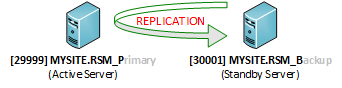
Replication Example
In the failover scenario below the primary site [29999]MYSITE fails over, and the active domain is migrated from the primary server to the backup server. All services running on the standby server will seamlessly be promoted to full production mode and become the primary active server and begin polling the field devices with minimal interruption to the controller’s client HMI. During the failover process services in both zones will stop and swap zones: the standby services will start up in the active zone, and the active services will start up in the standby zone.
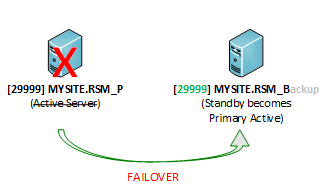
Simple Local Failover Example
Network Connectivity
If network connectivity is lost between the Active and Standby hosts, once connectivity is re-established the RSMs will synchronize their "owner" table. For example, if the Active host is Host A and the Standby host is Host B and connectivity is lost, the RSM on Host A will observe that it is no longer supposed to control the active services, shut those down and restart them in standby mode. This behavior assumes the system clocks for all RSMs involved are within a few seconds of each other. A difference of minutes could pose an issue. If Host A's system clock is ahead of Host B's system clock, then Host B will see that it is not supposed to be the active domain anymore and will switch back.
Manual and Automatic Failover
Failover in the CygNet environment can be manual or automatic. Manual Failover is triggered via human intervention using the Redundancy Dashboard or via script to initiate and determine the failover process. Automatic failover is triggered without warning and occurs when a system is configured to automatically switch services from an active server to a standby server in the event of a total system compromise. Auto-failover configuration takes place in the Redundancy Editor.
Visualize Failover
We have provided a set of sample CygNet Studio screens that can be customized to monitor failover readiness, and to execute and visualize failover.
To provide visibility into the redundancy, failover and replication process, a customizable CygNet Redundancy Dashboard is available in CygNet Studio. The dashboard shows every service in your system, on which domain it is running, and if it is standby mode, whether it’s ready to become the active service. Other key pieces of information available on the dashboard include each service's status, the direction and status of replication, the system's readiness to execute local failover, and the system's readiness to execute data-center failover.
Note: The CygNet Redundancy Dashboard comprises several sample CygNet Studio screens and script files found in the Samples\Redundancy Dashboard folder of the CygNet source. The Redundancy Dashboard screens utilize VBScript and the CygNet COM API to gather the necessary information from services to display on a CygNet Studio screen. These sample files are not part of the CygNet product and are provided for your convenience only. Feel free to copy and modify these files to suit the requirements of your own CygNet Redundancy environment.
See CygNet Redundancy Dashboard for information about this tool. You can initiate manual failover from the Execute Failover page of the dashboard. You can also view the Most Recent Failover and Failover History (manual or auto-failover) from the dashboard.


