Execute Failover Page
The third page of the CygNet Redundancy Dashboard is the Execute Failover.csf screen, which shows the failover sets that are going to failover, and when a system is ready to failover. Once ready click the Execute failover to perform a manual failover.
|
Click the thumbnail to see the |
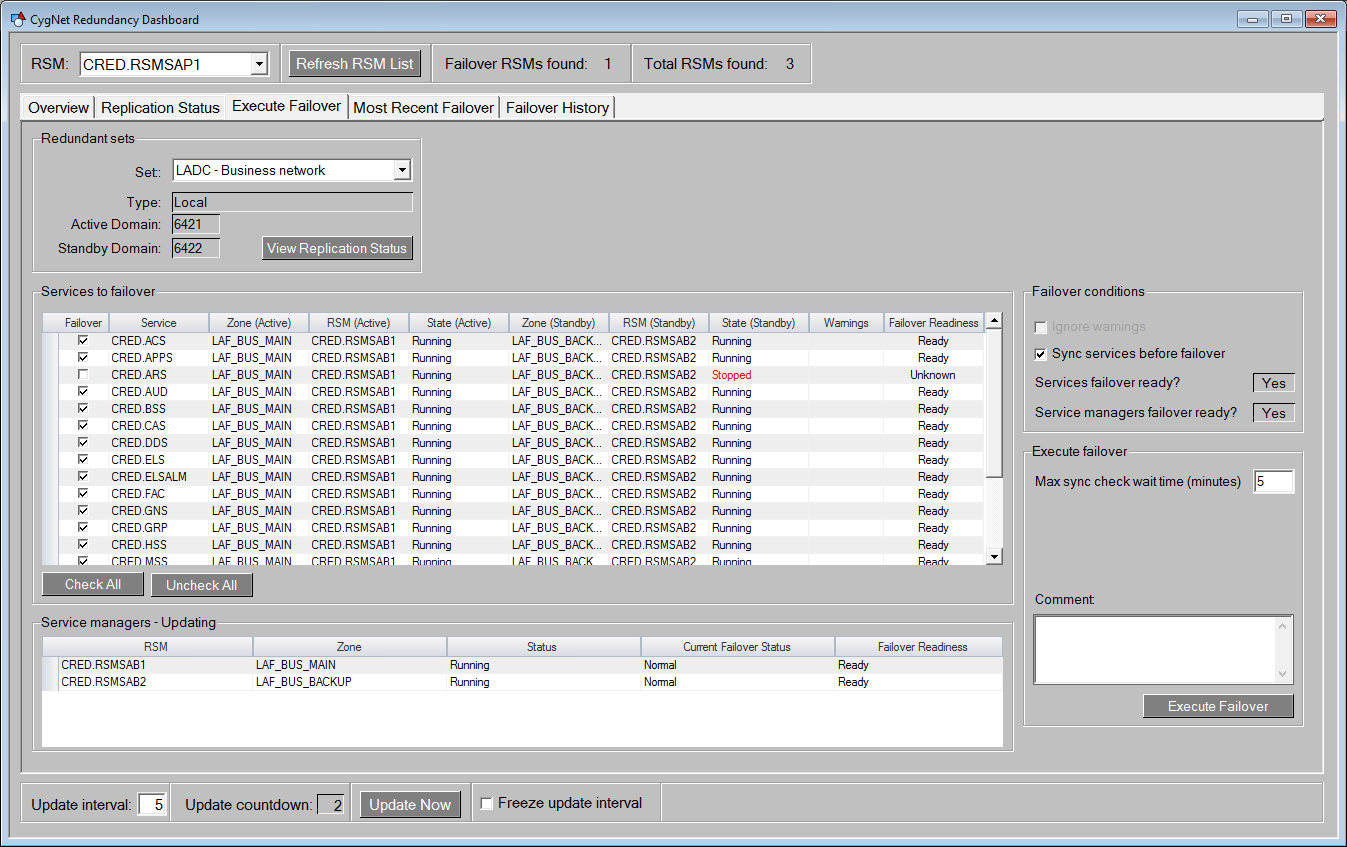
The Execute Failover page contains the following elements:
| Object | Description | |
|---|---|---|
| Redundant sets | ||
|
Set |
A drop-down menu showing all the redundant sets. Select the appropriate set to failover. |
|
|
Type |
The type of failover set. Types include: None, Local and Data Center. |
|
|
Active Domain |
The active domain of the selected set. |
|
|
Standby Domain |
The standby domain of the selected set. |
|
|
View Replication Status button |
Click to go back to the Replication Status page for the standby domain. |
|
|
Services to failover grid |
A Generic Grid object showing all services in the selected failover set and their readiness to failover. The columns include:
For example, in the image show above, the ACS is running on the 31313_Main Zone, which is controlled by the CYGSITE1.RSM (in the RSM (Active) column) and its status is Running. The backup ACS is running on the Standby Zone (21212_BACKUP) and is controlled by the CYGSITE1.RSM1 and its status is Running.
The Warning checks are derived from the following system info item mismatches between services intending for failover:
Click Check All to enable all services. Click Uncheck All to disable all sevices. |
|
|
Service managers grid |
A Generic Grid object showing all service managers that are affected by this failover. This will help you understand whether the RSMs are ready for failover. The columns include:
Note: The contents of this grid is dependent on what is selected elsewhere on the screen. When the affected Service Managers are being determined, the frame around the Service managers grid will say "Service managers - updating" to indicate that updating is taking place. The data presented in this grid is collected separately from the main data being collected by the Redundancy dashboard. |
|
| Failover conditions | ||
|
Click to ignore any warnings. You can still execute a failover if warnings exist, but you will need to select this check box prior to performing the failover. |
||
|
Sync services before failover check box |
Click to sync all services before perform a failover. |
|
|
Services failover ready? box |
Indicates whether all services are ready to failover. The box will indicate Yes if ready, No if any services are stopped. During a failover this box will transition from Yes to No to Yes as the services stop and restart on the different domain. |
|
|
Service managers failover ready? box |
Indicates whether the service managers are ready to failover. The box will indicate Yes if ready, No if any service managers are stopped. |
|
| Execute failover | ||
|
Max sync check wait time (minutes) box |
Specify the maximum amount of time to wait while a sync is performed. Default value is 5 minutes. | |
|
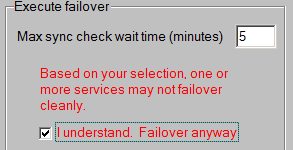
Based on your selection, one or more services may not failover cleanly.
|
This red warning message will appear if any of the following are true:
-OR-
-OR-
If you still want to proceed with a failover, select the I understand check box and click Execute Failover. You can still perform a failover but there is some risk in doing so. |
|
|
Comment box |
Type a comment associated with this failover. For example, "Swapping out primary server to do some hardware maintenance." | |
|
Execute Failover button |
Click to execute a manual failover. If all service states and readiness indicators are black then you are ready to execute a manual failover. If you are seeing warnings, or red text, there may be some configuration issues that need to be fixed. If the command executes successfully, a Failover command sent successfully popup will appear. Click OK. As the failover proceeds you will see the state of the services change color from black to red:
During the failover you can go back to the Overview page to watch the services stopping and starting on the other domain. Watch the Total and Running values change as the services switch from the Active to the Standby domain. The colored LEDs will change color and the Failover Readiness button will turn red as the failover progresses. Once the failover is complete, all the Active and Standby services come back up and the Active zone is now the Backup, and the Standby zone is now the Main. |
|