Grid View
The Grid view of the MSS Viewer utility enables you to create a customized, hierarchical view of configured tasks. Numerous task fields are available to choose from and may be organized in a way that suits your viewing needs. This functionality enables grouping and sorting of existing tasks to better troubleshoot scheduling issues. For instance, a hierarchical view of tasks makes it much easier to locate resolved-to devices.
Configuration changes may be made on an ad hoc basis on a per-task basis; these changes are then pushed to the Master Scheduling Service (MSS). Once you've configured a grid to display tasks in the format you want, the grid format persists after closing and opening it, after an MSS shutdown, and after an upgrade.

|
| Sample MSS Viewer Grid View |
For more information, see the following subsections below:
For information about setting up tasks and blackouts, see Tasks and Blackouts.
Configuring a Grid View
The following procedure provides a basic workflow for setting up an MSS Viewer Grid view. It is designed to give you an overview of possibilities for your grid. Some unique user interface features are described that help to provide a very highly configurable view.
To Configure a Grid View
- After opening the MSS Viewer utility, click View and select the Grid option.
- Select the appropriate MSS using one of the following methods:
- In the toolbar, click
 and select the appropriate MSS.
 - In the toolbar, click the Browse button to the right of the Site.Service field and select the appropriate MSS.
- In the toolbar, click
- After all of your unsorted tasks appear in the default view, create hierarchical groups.
- Enable the Group Box by right-clicking in the default column header and clicking Group Box. A large blank gray field appears at the top of your grid.
- To select fields other than default fields by which to sort, right-click the Group Box and select Field Chooser.
- Add fields by dragging and dropping them from the Field Chooser onto the column header in the position you require.
- Delete fields by dragging and dropping them from the column header into any space other than the column header or Group Box.
- When you're done adding and deleting fields, drag and drop column headers from the grid into the gray Grid Box. Doing so creates an ad hoc hierarchy that displays in the grid.
- Move Group Box elements to reformat your hierarchy.
- If you want to reset your grid to the default, right-click the column header or Group Box and select Set to Default.
- Once your hierarchy is established, you can sort within a group by typing the name of an item in the field directly beneath a column header. By default, <all> appears in these fields. Click the Browse button beside the field to return the grid to a pre-filtered state.

Grid View Options
The following table lists and describes available Grid view options.
| Property | Description | |
|---|---|---|
|
|
Click to update all Grid view fields except resolve count fields. Does not resolve tasks unless Resolve on Refresh is also checked. |
|
|
|
Check to resolve tasks to their respective destinations upon refresh. Results update in relevant fields on the grid. |
|
|
|
Highlight one or more tasks and click Resolve to resolve tasks to their respective destinations. Ctrl+Click and Shift+Click shortcuts are enabled. |
|
|
|
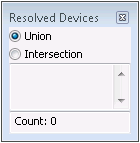
Click to open the Resolved Devices Panel, which lists all resolved devices for the highlighted task(s).
Sort based on Union or Intersection:
|
|
|
|
Refreshes only dynamic fields, which are fields with data that changes periodically without direct user intervention. Dynamic fields are as follows:
|
|
|
|
Highlight one task and click Properties to open that task's Edit Schedule Task dialog box. Changes made in this dialog box affect the MSS. |






Context Menu Options
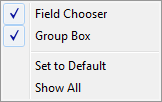
The following table lists and describes options available from the Field Chooser context menu.
|
Field Chooser context menu |
| Property | Description | |
|---|---|---|
|
Use the Field Chooser to select from an extensive list of possible fields by which to view and group your data. Select field options one at a time and drag each to either the column header or the Group Box. You can rearrange field positions by dragging and dropping them where applicable. |
||
|
Group Box |
The Group Box, if opened, appears as a large blank gray field at the top of your grid. It remains unpopulated until you drag and drop field headings into it. Once there, you can rearrange field headings on an ad hoc basis to reformat a hierarchy. Example
|
|
|
Set to Default |
Select to return all field settings to the default. |
|
|
Show All |
Select to automatically place all possible fields in the grid header. You can drag and drop field headings to remove them from the header. Once removed from the grid, they become an option again in the Field Chooser. |


