UIS Command Task
A UIS command task initiates a UIS command on a user-defined basis to one or more field devices. UIS commands must first be defined in the Device Definition Service (DDS); the MSS merely enables the choosing of specific ones to issue. The Can Schedule property of a UIS command must be selected in order for a command to be available for scheduling by means of the MSS. For more information, see Configuring a UIS Command.
The UIS Command Task property sheet enables you to specify the parameters by which a UIS command task resolves. A defined task resolves to the specified parameters and the UIS. In addition to set schedule polling where tasks are initiated on a predefined schedule, you can also set up polling to occur on a conditional basis and on a continuous basis.
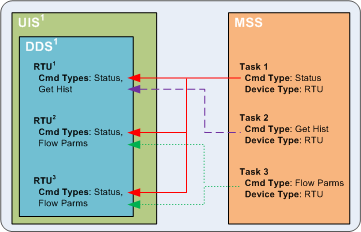
The following diagram illustrates how UIS command tasks resolve to their respective remote devices:
|
UIS Command Task |
For more information, see the subsections below:
- To Configure a UIS Command Task
- UIS Task Examples
- Basic Polling Example
- Conditional Polling Example: Using Tag-Specific Values
- Conditional Polling Example: Adjusting the Comm Queue to Avoid Over-Polling
- UIS Command Task Properties
See Scheduling a Task for information about configuring the Schedule property sheet for a UIS command task.
To Configure a UIS Command Task
- Once you have finished scheduling a task, click the UIS Command Task page to open the UIS Command Task property sheet.
- Select the relevant UIS, command type, and command priority. If you require a status UDC, select one now as well.
- Define the device descriptor rules for the selected command type. These enable device filtering so that only relevant devices are affected by the selected command type. A useful description of the rule(s) generates in the Description field at the bottom of the Device Descriptor(s) field.
- Select at least one Parameter. More may be specified in sequence if you require finer-tuned filtering than one parameter provides.
- Select the appropriate Operator.
- Enter the appropriate Value.
- Optional: Depending on Parameter selected, you can select a Tag Type.
- Optional: If Tag Type is selected, select an available Tag ID.
- When you are finished defining rules, test the results by clicking Resolve and confirm the results are what you expect. Results only reflect the rules defined by device descriptors; the task does not resolve to the command type.
- If you are finished defining your UIS command task, click OK to save your settings and exit.

UIS Task Examples
The following examples illustrate common ways to configure a UIS task.
Basic Polling Example
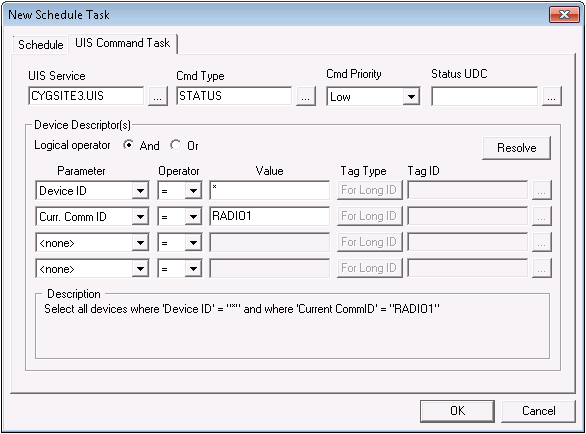
The following task shows that a STATUS command with Low priority is to be issued by the CYGSITE3.UIS service. The first Device Descriptor specifies all devices because Device ID uses a wildcard (*). The second Device Descriptor specifies a Curr. Comm ID value of "RADIO1". Because the logical operator used is And, all characteristics of both descriptors must be met. The result is that the task resolves to all devices that also have a current communication device ID of "RADIO1".
|
Basic Polling Example |
Conditional Polling Example: Using Tag-Specific Values
Conditional polling enables you to create a polling schedule based on the value of a specific tag. Conditional polling must be set up in conjunction with either duration or interval polling (see Scheduling a Task). Jobs are issued by duration or interval until a condition is met, then the appropriate task is executed in response to the condition. For example, if a poll is scheduled to run every 3 minutes and the conditional trigger for the poll is a high pressure, the job runs every three minutes but the task is only executed when the pressure becomes high.
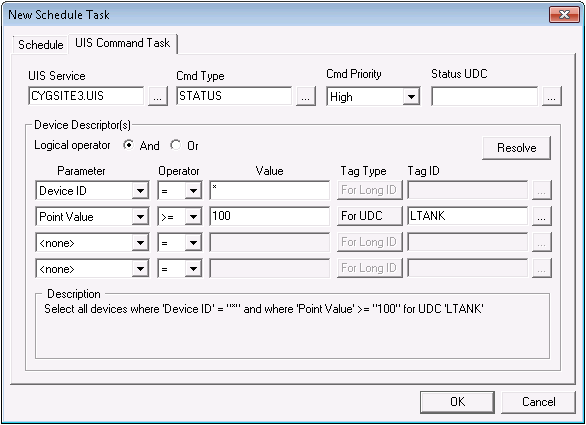
The following task shows that a STATUS command with High priority is to be issued by the CYGSITE3.UIS service. The first Device Descriptor specifies all devices because Device ID uses a wildcard (*). The second Device Descriptor specifies a Point Value greater than or equal to 100 for the specified UDC called LTANK (tank level). Because the logical operator used is And, all characteristics of both descriptors must be met. The result is that the job resolves to all devices that also have a UDC called LTANK, but a UIS command task is only issued if the point value for LTANK is equal to or greater than 100.
|
Conditional Polling Example |
Conditional Polling Example: Adjusting the Comm Queue to Avoid Over-Polling
Depending on your communication infrastructure, it is possible to schedule jobs to execute at a rate that is faster than your pending UIS communication queue can handle. This is not an optimal situation. For example, you might schedule a command to poll every 60 seconds but your pending communication queue is only able to issue commands every 70 seconds. Over time, your pending communication queue might back up and exhaust UIS memory.
An optimal solution is to adjust your MSS schedule to poll with enough time to fully execute a UIS command. But this is not always practical. Another way to solve this problem is to set up a condition that regulates the maximum number of tasks allowable at one time in a pending UIS communication queue. When the number of pending messages in the relevant pending communication queue is down to an acceptable level, an MSS task is issued to the queue. When the UIS executes the next command, the MSS can send yet another task. And so forth. If configured properly, this method of polling ensures that messages do not back up in a pending communication queue to a level that causes the UIS to exhaust its memory. However, it does mean that you are not truly polling on the schedule configured in your MSS task; you are polling at a rate the UIS communication device can handle.
To View Communication Statistics
- Using CygNet Explorer, open the relevant UIS.
- Click the Comm Devices page and view relevant statistics in the service pane.
- Right-click the relevant communication device and select options from the context menu.
For more information, see Universal Interface Service and Viewing Communication Statistics.
To Adjust the Comm Queue to Avoid Over-Polling
- Using CygNet Explorer, create a new point in the Point Service (PNT).
- In the Facility ID field, enter the relevant communication device facility.
- In the Uniform Data Code field, enter SYCSPEND. (The SYCSPEND value is the number of messages pending in a communication queue.)
- In the Point Type field, select Analog Input.
- Using CygNet Explorer, open the relevant MSS.
- On the Schedule page, define an interval.
- On the UIS Command Task page, select the relevant UIS and command type.
- Define at least one descriptor to identify devices affected.
- Use another descriptor to define the condition by which polling should occur. Be sure to enter the long-point ID of the point you created in step 1 above.
- Make any other required settings, then click OK to save and exit.
- Test your results by issuing jobs from the MSS and confirming their success in the UIS. (A Trend Tool might be a useful way to monitor results.)
Example
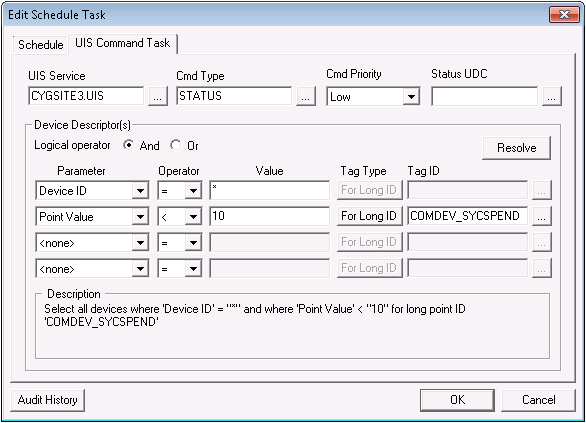
The following task shows that a STATUS command with Low priority is to be issued by the CYGSITE3.UIS service. The first Device Descriptor specifies all devices because Device ID uses a wildcard (*). The second Device Descriptor specifies a Point Value less than 10 for the specified long-point ID called COMDEV_SYCSPEND. Because the logical operator used is And, all characteristics of both descriptors must be met. The result is that the job resolves to all devices that share a communication device called COMDEV and a UDC called SYCSPEND, but a UIS command task is only issued when the point value for SYCSPEND is less than 10.
|
Continuous Polling Example |
UIS Command Task Properties
The following table lists and describes properties of the UIS Command Task property sheet.
| Parameter | Description | ||||||||||||||||||||||||||||||||||||||||||||||||||||||||||||||||||||||||||||||
|---|---|---|---|---|---|---|---|---|---|---|---|---|---|---|---|---|---|---|---|---|---|---|---|---|---|---|---|---|---|---|---|---|---|---|---|---|---|---|---|---|---|---|---|---|---|---|---|---|---|---|---|---|---|---|---|---|---|---|---|---|---|---|---|---|---|---|---|---|---|---|---|---|---|---|---|---|---|---|---|
| [UIS Command Task Information] | |||||||||||||||||||||||||||||||||||||||||||||||||||||||||||||||||||||||||||||||
|
The UIS that will process the task. |
|||||||||||||||||||||||||||||||||||||||||||||||||||||||||||||||||||||||||||||||
|
The command type (name). A command in the DDS must have its Can Schedule option enabled or it will not be listed. |
|||||||||||||||||||||||||||||||||||||||||||||||||||||||||||||||||||||||||||||||
|
The priority of a UIS command in the UIS communication message queue (CmdPriority). Cmd Priority options include:
Each higher priority trumps priorities lower than it. See Prioritizing Messages in the Communication Queue for more information about command priority. |
|||||||||||||||||||||||||||||||||||||||||||||||||||||||||||||||||||||||||||||||
|
Use this field to assign a status UDC to the UIS command task. Status monitoring affects the CygNet Studio UIS Command Button tool. See UIS Command Button for more information. This property is optional. |
|||||||||||||||||||||||||||||||||||||||||||||||||||||||||||||||||||||||||||||||
|
Device Descriptor(s) |
|||||||||||||||||||||||||||||||||||||||||||||||||||||||||||||||||||||||||||||||
|
Logical Operator |
Select And or Or to define your use of search parameters. |
||||||||||||||||||||||||||||||||||||||||||||||||||||||||||||||||||||||||||||||
|
Resolve |
Once the Device Descriptors are defined, click Resolve to display a list of devices that match the Descriptors. |
||||||||||||||||||||||||||||||||||||||||||||||||||||||||||||||||||||||||||||||
|
Parameter |
The Parameter specifies an identifier by which to resolve a command.
|
||||||||||||||||||||||||||||||||||||||||||||||||||||||||||||||||||||||||||||||
|
Operator |
Select an available operator to define the relationship between a parameter and a value. |
||||||||||||||||||||||||||||||||||||||||||||||||||||||||||||||||||||||||||||||
|
Value |
Enter a user-defined value. The Value field is not case sensitive. The wildcards "*" and "?" can be used when specifying a Value:
|
||||||||||||||||||||||||||||||||||||||||||||||||||||||||||||||||||||||||||||||
|
The Tag Type buttons enable you to specify the type of tag that corresponds to the value entered in the Tag ID field. Options are as follows:
Simply click the Tag Type button to toggle between options. The Tag Type buttons only become available when used with the following Parameter values:
For more information, see Conditional Polling Example. |
|||||||||||||||||||||||||||||||||||||||||||||||||||||||||||||||||||||||||||||||
|
The Tag ID field enables you to specify a tag that corresponds to the selected Tag Type. Click the Browse button to open the Select Point dialog box for a list of available tags in one of three formats; formats correspond to that selected by the Tag Type button. The Tag ID field only becomes available when used with the following Parameter values:
For more information, see Conditional Polling Example. |
|||||||||||||||||||||||||||||||||||||||||||||||||||||||||||||||||||||||||||||||
|
Description |
An easy-to-read description of the descriptor rule(s) defined above. |
||||||||||||||||||||||||||||||||||||||||||||||||||||||||||||||||||||||||||||||

