Blob Component-Level Security
Component-level security can be applied to single files or groups of files in a Blob Storage Service.
Examples of Blob component-level security:
- You can provide all users access to a single CygNet Studio screen stored in the Blob, such as an overview screen, but not to other screens. When using Studio, the users will get an "access denied" message when trying to open other files (using the menu or a HyperLink).
- You can provide all users access to all CygNet Studio screens, but only select users access to a screen that contains control elements.
- You can provide certain users access to utilities stored in the Blob by including all of the files in the same Blob group and giving those users access for that group.
You must have at least Level 2 authorization for the service’s ACCESS event to change the properties of a record.
Blob File and Blob Group security take precedence over service-level security. Blob File security takes precedence over Blob Group security. Keep in mind that Level 5 authorization for the service (i.e., Service Administrative Security) trumps all component-level security.
Note: Blob component-level security can be configured in either CygNet Explorer (described below) or in the BSS Explorer.
|
Blob Component Level Security |
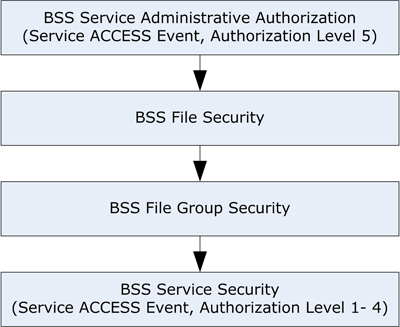
The Application and Event(s) that you apply to Blob component security can be custom or you can use an existing Application and Event. It may be easier to track component security if you use a custom Application name. If you create a custom Event, the authorization levels for the Event parallel those of the Blob ACCESS Event. For example, you have to have Level 1 authorization to view the file.
To Configure BSS File Level Security
- In the ACS, create an Application and Event for the file and define permissions for the Event.
- In the BSS, right-click on the file in the Blob service pane and click Properties.
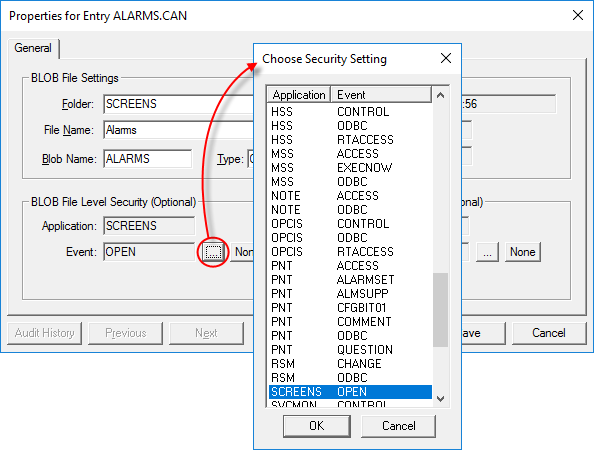
- In the Blob File Level Security area, click … next to the Event box.
- Select the Application and Event name and click OK to return to the file properties box.
- Click OK to save the file properties.
|
Choose Security Setting |
To Configure BSS File Group Security
When configuring file group security, you have to define the security only for one file in the group. The security information will be written to all files in the group.
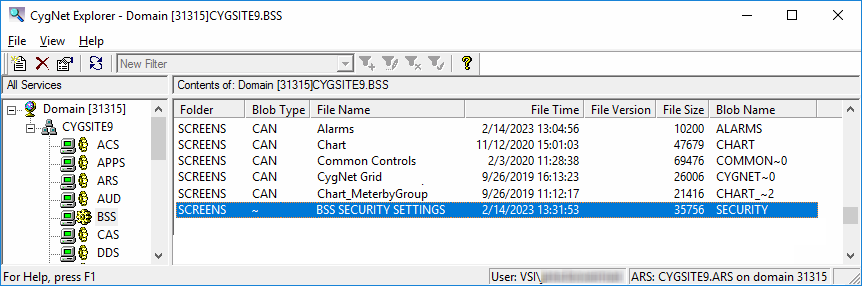
Once the group security is saved, the Blob creates a file for the group named “BSS Security Settings.~” You can use this entry to modify the security for the group.
|
Group security file created by the Blob |
- In the ACS, create an Application and Event for the file group and define permissions for the Event.
- In the BSS, right-click on a file in the group in the Blob service pane and click Properties.
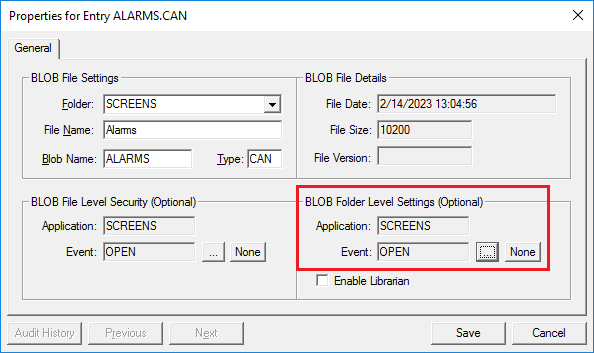
- In the Blob Folder Level Security area, click … next to the Event box.
- Select the Application and Event name and click OK to return to the file properties box.
- Click OK to save the application group properties.
|
Blob Application Group Level Security |
To Clear File Level or Group Level Security
- In the BSS, right-click on the file in the Blob service pane and click Properties.
- In the applicable security area (File Level or Group Level) click the None button to clear the setting.
- Click OK.


