Creating SVCMON Points
The Info Items view is used to create and edit SVCMON points that monitor system info items. The view consists of three separate windows.
- The first window in the view lists the services. Click Filter to filter the list to specific sites or service types. Click Get UDCs Available for Services to populate the second window.
- The second window lists the SVCMON UDCs available for the selected service(s) categorized by type. If you have a single service selected and a SVCMON point has already been created for a UDC, the UDC will not be listed. If you have multiple services selected the UDC will be listed as long as it is still available for any one of the services. Use the filter row at the top of the data grid to narrow the selection:
- Click to select the desired column text box, then type the desired filter; or click … to view the Filter Column by Text dialog box.
- For the Category column, you can filter by type.
- The default filter for all columns is <all>.
- The third window shows the info item points to be created.
|
Info Items |
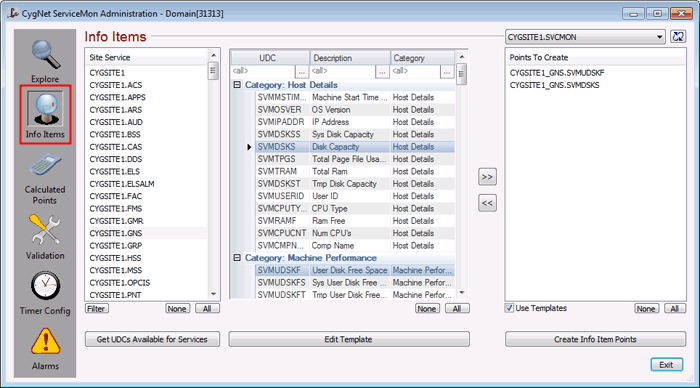
To Create a SVCMON Point
- Click the Info Items view icon.
- To filter the service list, click Filter and set the domain, sites, service types, and states as desired.
- Select the services for which you want to create SVCMON points. To select a single service click on the service name. To select multiple services press Ctrl+Click. Use the None and All buttons to clear the selection or to select all, respectively.
- Click Get UDCs Available for Services to populate the second window.
- Select the UDC(s) then click the Add button (>>) to add them to the Points to Create list.
- To apply the properties of point template to the points to be created, click the Use Templates option.
- Click Create Info Item Points to create the points. The SVCMON point will be associated with the default timer.
- Once you have created a SVCMON point, the UDC will no longer be listed as an option for the selected service.
To Edit a SVCMON Point
SVCMON points can be modified using a number of methods.
Using the CygNet ServiceMon Administration utility:
- Click on the Explore view icon.
- Double-click the point, or
- Right-click the point and select Edit Point Configuration or
- Right-click the point and select Current Value, then click Point Configuration.
Using CygNet Explorer:
- Click on the PNT in the service hierarchy. In the service pane double-click the SVCMON point or right-click on the tag and select Current Value.
SVCMON Point Notes
When creating points to monitor site ping time (SVMSTPT) and site status (SVMSTST), you must select a service since "sites" are not listed. However, the Facility property of the resulting points will be set to SITE.
The utility will only create points for which the service-UDC combination is valid. For example, if you show the UDCs for both MSS and VHS and try to create tags for the maximum VHS data file size (SVMVHSVFM) the utility will create only the point for the VHS since the UDC is not applicable to the MSS.
Once the SVCMON point is created, the Facility property of the point is the SITE_SERVICE and the UDC property is set to the SVCMON UDC (for example, MYSITE_RSM and SVMCTIMEL). Other properties are set by SVCMON. These include the General Data Field 1 (Site.Service being monitored) and General Data Field 2 (GENSERVE request) properties on the Application page, and the Point Reference properties (SVCMON timer) on the Point reference page. None of these properties should be changed.
Note that it is not necessary, nor desirable, to create SVCMON points for every possible service-UDC combination. For example, a host server generally has, at a minimum, a Remote Service Manager (RSM). As such, CygNet Software recommends that when creating SVCMON points to monitor server and network statistics that you base these points on the RSM. In other words, if you want a point to monitor the available disk space (SVMDSKS) on the host server, create the point just for the RSM. The same SVCMON applied to other services on the same server would be redundant.
The SVCMON UDCs are stored in the Table Reference Service in the ~UDCALL table. The CygNet ServiceMon Administration utility checks the table as part of its validation process and will add any missing UDCs.
Once a SVCMON point has been added and initialized, you can view the current value, status, state, and attributes by right-clicking on the point in the Explore view and clicking Properties.
You can also create SVCMON points that monitor system info items on other domains. See Cross Domain Support for more information.
More:
 Site or Service Names that Contain an Underscore


