Configuring the CygNet Service Diagnostics Utility
Use the Service Diagnostics Grid Properties dialog box to select, filter, and display the data shown in the CygNet Service Diagnostics data grid. You can also import and export the configuration settings for the utility.
|
Service Diagnostics Grid Properties |
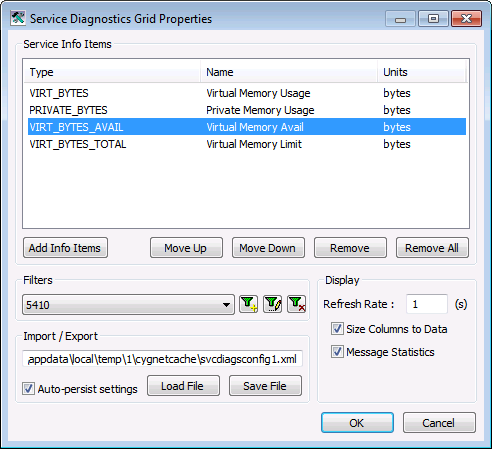
Configuring Service Info Items
The following procedure describes how to add and remove individual Service info items from the Service Diagnostics display grid. To add pre-configured sets of info items, see Quick Sets.
To Configure Service Info Items
- After opening the Service Diagnostics utility, click View and select the Properties option. (You can also click
 , Ctrl+P, or right-click any cell and select Edit Grid Properties in a preconfigured grid.)
 - Click Add Info Items to view all info items categorized by Type. In the Add Info Items dialog box:
- Click on any column heading (Type, Name, Units, or Category) to sort the grid by that column.
- Use the filter row at the top of the data grid to narrow the selection:
- Click to select the desired column text box, then type the desired filter.
- The default filter for all columns is <all>.
- Select desired info items and click Add to return to the Service Diagnostics Grid Properties dialog box.
- Use the Move Up and Move Down buttons to reorder the info items.
- Click Remove to remove a selected info items from the list.
- Click Remove All to remove all info items from the list.
- Configure other desired properties (filter, display, import/export).
- Click OK to view the selected info items in the Service Diagnostics display grid.
Filtering Domains and Services
You can filter the domains and services listed in the Service Diagnostics display grid. The filter options are domains names, site name, service types, and service status. Any combination of these options can be used.
To Filter Domains and Services
- After opening the Service Diagnostics utility, click View and select the Properties option. (You can also click , Ctrl+P, or right-click any cell and select Edit Grid Properties in a preconfigured grid.)
- To configure a new filter, click Add Filter (
 ) to view the Filter Options dialog box.
- Click Enable Filter.
- Select the Domains Names, Site Names or Service Types or Service Status you want to view. Use All or None to aid in selection. The [ALL] filter includes sites and services that are available at runtime, not just those when the filter was created.
- Give the filter a name.
- Click OK.
|
Filter Options |
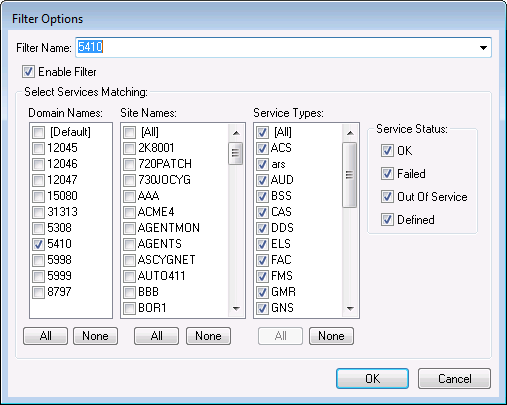
- To edit an existing filter, select the filter from the drop-down menu, and click Edit Filter (
 ) to view the Filter Options dialog box.
 - To delete an existing filter, select the filter from the drop-down menu, and click Delete Filter (
 ).
). - Configure other desired properties (display, import/export).
- Click OK to view the selected info items in the Service Diagnostics display grid.
Displaying Data
These options control how the data is displayed in the Service Diagnostics display grid.
To Set Data Display Options
- After opening the Service Diagnostics utility, click View and select the Properties option. (You can also click , Ctrl+P, or right-click any cell and select Edit Grid Properties in a preconfigured grid.)
- Set the following options in the Display section as desired.
Option Description Refresh Rate
Specifies how frequently to automatically refresh the data grid. The default is 1 second. You can always perform a refresh on demand by clicking
on the toolbar.
Size Data to Columns
Specifies that the width of the column matches the size of the data within widest cell. This is useful if you choose to display many columns of data.
Message Statistics
Specifies that the Message Statistics will be displayed in the data grid. The Message Statistics are as follows:
- Delta Time — The difference between the service’s current time and the last time a refresh occurred.
- Msgs In — The total number of messages sent to this service since the service started.
- Msgs In Delta — The number of messages sent to the service since the last refresh.
- Msgs In Rate— The calculated rate that is the number of Msgs In per second.
- Configure other desired properties (import/export).
- Click OK to view the selected info items in the Service Diagnostics display grid.
Importing and Exporting Settings
You can save the configuration settings for this utility to an .xml file. The default file name is SvcDiagsConfig.xml.
To Import or Export Settings
- After opening the Service Diagnostics utility, click View and select the Properties option. (You can also click , Ctrl+P, or right-click any cell and select Edit Grid Properties in a preconfigured grid.)
- Set the following options in the Import/Export section as desired.
Option Description Auto-persist settings
Click this check box to automatically save any changes you make to the currently open configuration file each time you close the Service Diagnostics utility.
Load File
Click to open and load a previously configured configuration file.
Save File
Click to save changes to your configuration settings in a new .xml file. The default file name is SvcDiagsConfig.xml but you can specify any file name.
- Click OK to view the info items in the selected configuration file in the Service Diagnostics display grid.


