Finishing Keyword Editing
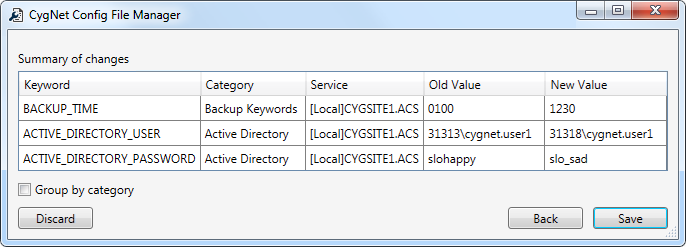
You can review all modified keywords on a Change summary page before saving them to the service configuration file(s).
|
Change summary page |
To Save or Discard Keyword Changes
- Click Finish (or Ctrl+Shift+F) to review all keyword changes before committing your changes.
- If there are any encryptable keywords that remain in plain text when you click Finish, you will be warned and asked if you want to encrypt the keywords. Click Yes if encryption is desired.
- Review the Change summary: Keyword, Category, Service, Old Value and New Value.
- You can sort any column by clicking the column heading.
- Click Group by category to group like keywords under the same heading.
- Click Discard to scrap all changes. Click Yes to confirm you will lose all changes. You will be returned to the load page of the tool.
- Click Back to return to the main page and make more changes as necessary.
- Click Save to commit all changes to the configuration file(s).
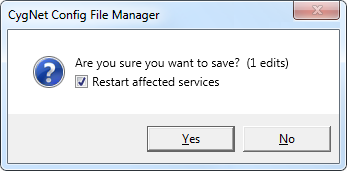
- Click Yes to confirm you want to save your changes (n edits).
Restart Services
Local Configuration File
A committing changes to a local configuration file using the Config File Manager, you must manually stop and restart the service(s) for the change to become effective using CygNet Host Manager or CygNet Explorer. Each service reads the service configuration file only at startup.
Remote Configuration Files
After committing changes to a remote configuration file(s) using the Config File Manager, you can direct the utility to restart all affected services for you.
|
Restart |
To Restart Remote Services
- Make all desired changes for remote services via the Config File Manager.
- On the Confirm Save dialog box select Restart affected services.
- Click Yes to persist the changes, and restart the services.
Important: If there are RSMs or ARSs included in the list of remote services to restart, you will be warned that a Manual Restart is required for those services and the Config File Manager cannot restart a remote RSM or ARS.
- A list of services (in [Domain]Site.Service format) and its restarting Status is displayed in the Restart in Progress dialog box.
- If you need to cancel the restart action, click Cancel, and then Yes to verify the action.
- Click Close to close the Restart in Progress dialog box once all restarts have completed.


