Encrypted Keywords
Several keywords in CygNet Software are encrypted to provide added security for usernames and passwords.
Encryption Key File
Keywords are encrypted with a single, common, encryption key file, which stores an AES key used to encrypt and decrypt usernames and passwords. The file should only be read by the user running the related service and any user that needs to run the Config File Manager, which can be used to change (re-encrypt) any related keyword. The Config File Manager also can be used to create a new encryption key file after upgrading, or if one did not previously exist.
The name and location of the common encryption key file is specified by the ENCRYPTION_KEY_FILE keyword, which is found in the configuration files (.cfg) for the services that have encrypted keywords (Acs.cfg, Fms.cfg, and Gns.cfg). The default name of the file is ServiceConfigEncryptionKey and its default location is the root of the Services data directory.
NTFS permissions should be used to prevent unauthorized users from accessing the encryption key file. It should not be copied to a BSS.
The encryption key file is not replicated, so if configuration files are manually "replicated," the encryption key file should also be.
Services with Encrypted Keywords
The following keywords are encrypted in the common encryption key file.
| Service | Encrypted Keywords | Notes |
|---|---|---|
|
ACS |
||
|
FMS |
These keywords can be changed (and re-encrypted) using the Config File Manager (and as described below). Once encrypted, password keywords cannot be decrypted. |
|
|
GNS |
These keywords can be changed (and re-encrypted) using either the Config File Manager (and as described below) or the GNS Configuration Utility. Once encrypted, password keywords cannot be decrypted. |
|
|
RSM |
Not encrypted, but obfuscated using a password hashing algorithm. See the note under PIN_WORK_FACTOR for more information about password hashing. Once encrypted, this password keyword cannot be decrypted. See RSM Password for more information about this keyword. |
Updating Encrypted Keywords
Use the Config File Manager to create or update the encryption key file for all encrypted keywords.
- Open the Config File Manager, stored in the CygNet\Bin directory (ConfigFileMgr.exe) on the host server. To start the utility, browse to the directory using Windows Explorer and double-click the program icon.
- Load the local configuration files.
Note: This feature is only available for local configuration files. If you have loaded remote configuration files, you will be warned of this.
- Filter the keywords and find the ENCRYPTION_KEY_FILE keyword.
- Click the Special Action button in the A column next to the ENCRYPTION_KEY_FILE keyword.
|
ENCRYPTION_KEY_FILE |
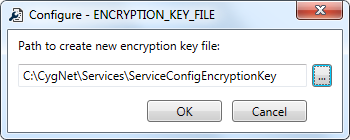
- If an encryption key file exists for any service, the path and file name will be displayed in the ENCRYPTION_KEY_FILE dialog box.
- Click … to specify a path to a new encryption key file.
- If an encryption key file already exists at the destination, you must change the file name or path. You can't overwrite an existing file.
- Click OK to decrypt all currently encrypted keywords with the old file, and the re-encrypted using the new file. Additionally, the value for the ENCRYPTION_KEY_FILE keyword for all services will be updated with the new path.
- Once you have made all desired changes, click Finish to review and save changes.
- Stop and restart affected service(s) for the changes to become effective. The service reads the .cfg file only at startup.


