Communications Data Viewer
The Communications Data Viewer is a client-side logging tool for troubleshooting remote device communications. It provides a method to view data transmitted between the host and field devices, and to save the data to a file for off-line analysis. Thoroughly understanding your field device protocol is essential for proper use of this tool.
Common viewable and savable data types include message timestamp, number of bytes sent, device ID, message validity, message description, and protocol bytes (including header, data, and footer). Data can be viewed per remote device or communication device and automatically logged to a file. By default, the UIS stores the last 20 message sequences for a remote device. However, if you check the Auto Refresh option, you can log more than 20 messages in the viewer. If you then close the viewer and re-open it, only the last 20 message sequences are shown.
|
Click the thumbnail to see an example |
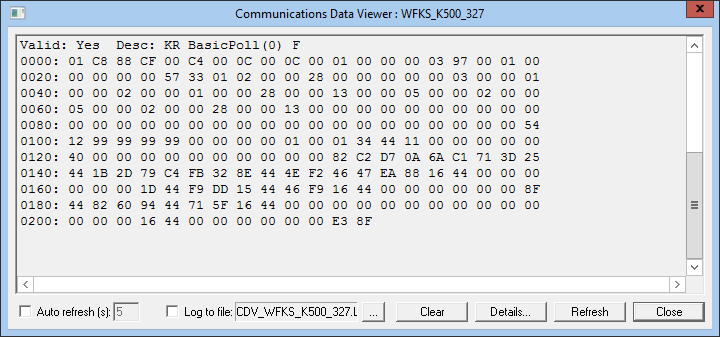
For similar, but more in-depth, functionality, see the CygNet CRC Generator Utility.
To Open the Communications Data Viewer from a DDS
- Using CygNet Explorer, open the applicable DDS in the service hierarchy.
- Open a remote device.
- Go to the Data Group page and poll data groups.
- On any page, click the Comm Data button.
- The Communications Data Viewer populates with comm-data bytes.
To Open the Communications Data Viewer from a UIS
- Using CygNet Explorer, open the applicable UIS in the service hierarchy.
- Highlight the remote device or comm device you want to view data for, right-click, and click Comm Data View.
To Log Data to a File
Note: Data logging begins as soon as this option is enabled. But the file is not back-filled with the data shown in the viewer prior to the option being enabled.
- In the DDS, open a remote device.
- Click the Comm Data button to open the Communications Data Viewer.
- On the Communications Data Viewer, check the Log to file option.
- Click the Browse button, enter a File name or use the default, select a storage location, and click Open.
- In the Device Editor, go to the Data Group page and poll data groups.
- Click Refresh in the Communications Data Viewer to display the polled data. Only data that appears in the window will be written to the file.
- Leave the Communications Data Viewer open until you have logged the required amount of data, then click Close.
- Close the Device Editor and open the saved file to view the logged data.
Note: The data is not written to the log file until the Communications Data Viewer and the Device Editor are closed.
Advanced Details Options
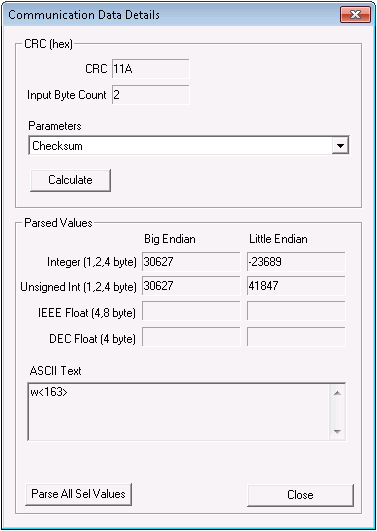
When you click Details on the Communications Data Viewer, the following dialog box opens, presenting an in-depth view of selected byte details. The Communications Data Viewer converts highlighted hex bytes to decimal values in both Big Endian and Little Endian format. These converted values are displayed in the Parsed Values section of the Communication Data Details dialog box along with the byte’s ASCII representation, if relevant.
|
Click the thumbnail to see an example |
To Select Communications Data for Advanced Details
After clicking Details to open the Communication Data Details dialog box, highlight bytes on the Communications Data Viewer that you want to view advanced details for. The Communication Data Details dialog box dynamically interacts, filling Communication Data Details fields.
To (Re)Calculate the Cyclic Redundancy Check
- After clicking Details to open the Communication Data Details dialog box, select the appropriate device driver from the Calculation drop-down menu. This ensures that the correct algorithm is used when (re)calculating the cyclic redundancy check (CRC).
- Both the CRC and Input Byte Count boxes are dynamically linked to bytes that are highlighted in the Communications Data Viewer. As different bytes are selected, the values change.
To Parse All Selected Values
Clicking Parse All Sel Values displays selected value bytes on their own rows in a grid in various numeric formats. Numeric formats include hex, binary, integer, decimal, floating-point, and other. The ASCII format is displayed as well.
The Parsed Values table provides the following functionality:
- Use Display to display values in either Big Endian, Big Endian Word Swap, or Little Endian format.
- View Offset for the bit offset of the value byte.
- Check Hex View to convert all standard table values into Hex.
- Print the table by clicking Print.


