Edit Point Value
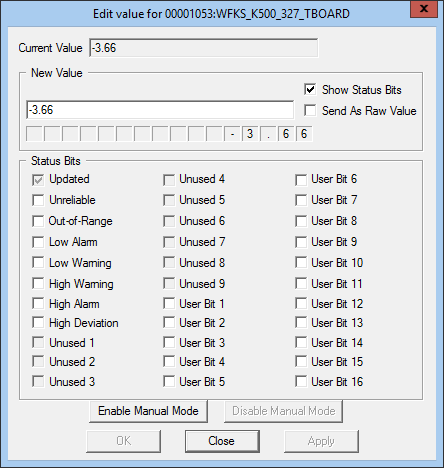
The Edit value for dialog box provides a way to override a point's current value. The dialog box options differ according to point type. The dialog box for an analog point is shown below.
|
Edit value for Dialog Box |
| Property | Description |
|---|---|
|
Current Value |
Displays the current value of the point. |
|
New Value |
For Analog point types, enter the new value for the point in this field. For Digital and Enumeration point types, a drop down menu displays valid options, or a value may be entered by the user. |
|
Show Status Bits |
Check to see all available status bits for the point. |
|
Send As Raw Value |
Displays only for Analog Input point type. See Analog Points below. |
|
Status Bits |
Status bits associated with the point. A checked box means that a status bit is set. See Point Status Bits. |
|
Enable Manual Mode |
Click Enable Manual Mode to enable manual mode for the point record. Performs the same function as Manual update mode on the General page of the PNT Editor. When enabled the associated Current Value Service is blocked from updating the point. Click Disable Manual Mode to disable manual mode for the point record |
Editing Point Values
Different point types present various options when editing point values.
Analog Points
Enter the new value for the point in the New Value field of the Edit value for dialog box. If Scaling is enabled on point, the user has the option of entering the raw value as the new value. The raw value is calculated and sent when the Send As Raw Value box is selected.
Note:
Scaling is only available for the Analog Input point type.
When minimum and maximum setpoint values are enabled, the valid range will be shown above the New Value field of the Edit value for dialog box. If minimum and maximum setpoints are enabled, the new value entered must be numeric and within the valid range. If not, the user will be prompted when clicking Apply.
Digital and Enumeration Point Values
When editing Digital or Enumeration point values, a drop down menu with valid choices displays in the New Value section of the Edit value for dialog box. The user may select an option or type in a value. A reverse lookup is performed and the raw value is always sent.
If the value entered does not match any of the valid options or raw values, the user is prompted with the option to send it anyway upon clicking Apply.
String Point Values
To edit a String point value, enter a value in the New Value field and clicking Apply.


