Batch File Runner Script
The Batch Filer Runner (BATCH_FILE_RUNNER) is a system library HyperPoint that can be used by different batch file runner script instances. A script library file called BATCHFILERUNNER_SCRIPT.TXT can be configured to run a batch file at a specified interval or when triggered by a referenced point. The script for the BATCH_FILE_RUNNER Library HyperPoint is stored in the CygNet\Utilities\SCRIPTLIBRARY folder on your host server. The library point is installed using the CygNet Point Script Copy Utility.
For more information, see the following subsections below:
Create the BATCH_FILE_RUNNER Library HyperPoint
The system library BATCHFILERUNNER_SCRIPT.TXT contains the script required to run a batch file.
To Install the Batch File Runner Script
- Using Windows Explorer, browse to the CygNet\Utilities directory on the host server.
- Locate and double-click the CygNet Point Script Copy Utility program executable (PointCfgScriptCopy.exe).
- In the PointCfg Service drop-down menu, select the Point Service (PNT) to which you want to copy the script.
- In the Target HSS Service drop-down menu, select the HyperPoint Scripting Service (HSS) to which you want to copy the script.
- In the Script Copy Source (Copy From) area, select the From File option.
- Click the Browse button beside the From File field and browse to the directory that contains the BATCHFILERUNNER_SCRIPT.TXT file. This is typically CygNet\Utilities\ScriptLibrary.
- Select the BATCHFILERUNNER_SCRIPT.TXT file and click Open.
- In the Script Copy Target (Copy to) area, select To Default Service Point in Source.
- Click Test Copy to validate the copy. Closely read all test messages and resolve any errors before proceeding.
- If you are ready to perform a live copy, click Perform Copy to copy the script into the selected PNT and HSS.
- Click Yes if you are sure you want to copy the selected script. A new Library HyperPoint is created.
- In the HSS in CygNet Explorer, right click the newly created Library HyperPoint and select Point Configuration from the drop-down menu.
- Click Edit and ensure that the HyperPoint and Activate Script check boxes are selected on the General tab.
- Click Save.
Create the Library User HyperPoint
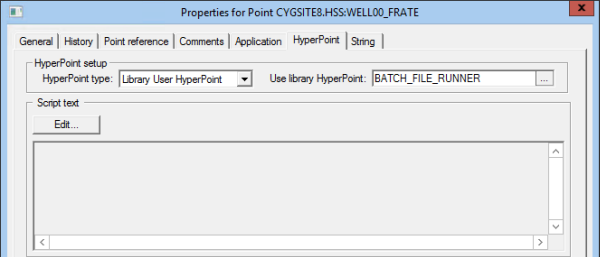
A Library User HyperPoint must be created to run the Batch File Runner script.
|
Library User HyperPoint |
To Create a Library User HyperPoint
- Using CygNet Explorer, open the Point Service (PNT) in the service hierarchy.
- Right-click in the white space in the PNT service pane and click New.
- In the Site.service field, click … and select your HSS.
- In the Facility ID field, type the Facility ID name or click … to select the appropriate facility.
- In the Uniform data code box, type the UDC name or click … to select the appropriate UDC.
- Ensure that the HyperPoint and Activate Script check boxes are selected.
- Set the Point Type to String Input.
- Select the HyperPoint page.
- Set the HyperPoint type to Library User HyperPoint.
- Click the Use library HyperPoint field browse button and select BATCH_FILE_RUNNER.
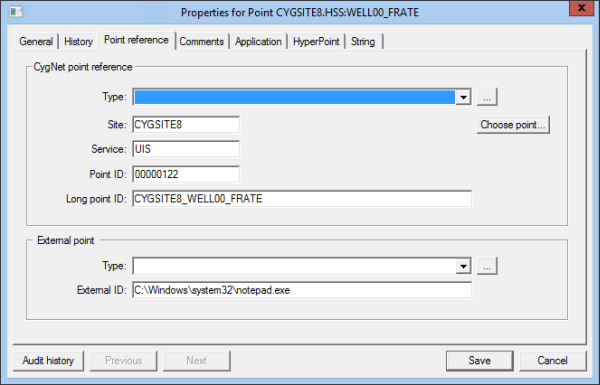
- On the Point reference page, in the External ID property, type the path to the file or application you want to run.
- To configure the batch file to run on an interval, enter the number of milliseconds in the General 1 data field on the Application page.
- To configure the batch file to run when a point value changes, enter the value in the General 2 data field on the Application page.
- To configure the batch file to run on a trigger point, select the Point Reference page and perform the following:
- Click the Choose point button, change the CVS Site.Service to your UIS, and refresh the view.
- Select the desired point.
- If you want the batch file to run when the trigger point matches a specified value, enter the matching value in the trigger point’s General 2 data field on its Application page.
Note: If step c. is not performed, the batch file will run on any/every change to the trigger point.
- Click Save. The Library User HyperPoint value displayed indicates the script’s running status.
|
Point Reference page |

The following table lists and describes the possible values of the script's running status.
| Value | Description |
|---|---|
| Bad Timer Value | The specified timer interval is invalid. |
| Bat File Failed | There was an error running the batch file. |
| Initialized | The HyperPoint has finished initialization. |
| No Batch File | No batch file has been specified. |
| No Timer/Tag | There is no timer or trigger tag specified. |
| No Val Match | The trigger point is not set to the matching value to activate the batch file. |
| Success | The batch file run was successful. |
| WScript Shell Crt | The script failed to create the Windows Script Shell object. |
Troubleshooting
Perform the following steps if the script fails to run:
- Check the value of the Library User HyperPoint in the HSS for an error message.
- Use CygNet Console to check HSS system messages. If the console shows an error on a specific line, use Notepad to open the Script.txt file (stored in the CygNet\Services\HSS folder).
- Check the HSS_Script<xxx>.log in the CygNet\Services\HSS folder for errors.
- Ensure that the LOGMASK_SCRIPT keyword in the Hss.cfg file is set to LOG_ALL.
Perform the following steps to verify the settings of the trigger point:
- Verify the Point ID of the trigger point on the Point reference page of the Library User HyperPoint.
- Verify the path to the batch file on the Point reference page of the Library User HyperPoint.

