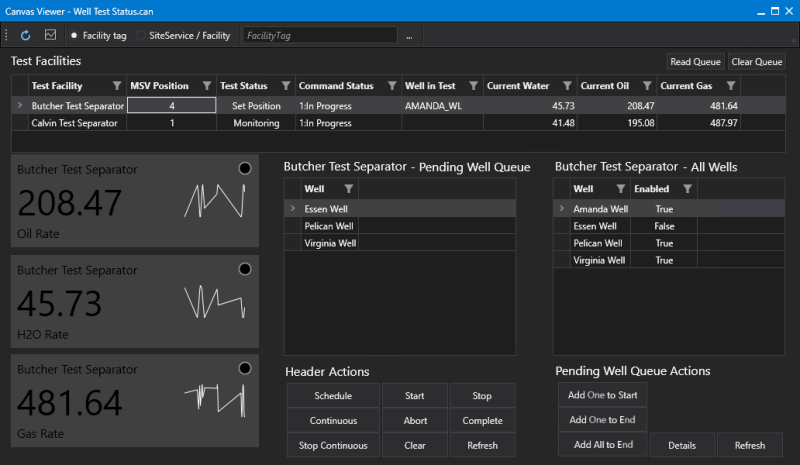
Sample Well Test Status Screen
The Well Test Status sample screen (Well Test Status.can) is a Canvas screen that reads the well test configuration XML file and presents a grid of test facilities with some status information. The lower half of the screen is driven by the test facility selection in the grid. Along the left side of the screen are three process variables showing various rates for the current well in test.
|
Canvas Well Test Status Sample Screen |
Pending Well Queue Actions
The grid on the far right of the screen (<Name of Test Facility> - All Wells) is a list of associated wells in the selected header. The five buttons below that grid control the pending queue actions:
- Add One to Start — Add the selected well to the top of the queue
- Add One to End — Add the selected well to the bottom of the queue
- Add All to End — Add all wells to the bottom of the queue
- Details — Click to open the Well Test Details screen
- Refresh — Click to refresh the well actions.
Queue Actions
The grid in the middle of the screen (<Name of Test Facility> - Pending Well Queue) represents the current pending queue. The nine buttons below that grid control the header actions:
- Schedule — Schedule the queue to start processing. The SCHEDULE action is a reserved value, such that once the header queue point is set to that value, the CygNet Well Test Service will put all active wells for the header into the queue and START the queue. The value can be set manually, using the MSS (via a Set Point task), or via an external script. Or an external system such as ForeSite or other could issue the "scheduled task". Use Sequence to specify the desired well order. The CygNet Well Test Service prevents a SCHEDULE request from processing while the SCHEDULE command is already being processed. (SCHEDULE)
- Start — Start processing the wells in the queue. The CygNet Well Test Service prevents a START request from processing while the START command is already being processed. (START)
- Stop — Stop the entire well test operation, no further testing. The queue will reset to Idle after a Stop command. When the CygNet Well Test Service is stopped and restarted testing will resume on the well and action currently in test. (STOP)
- Continuous — Add wells to the queue automatically based on their order in the well test configuration, and tests continuously in an infinite loop. The Continuous action sets a flag called ContinuousTesting to true before starting the processing of the queue. Whenever the queue is empty and this flag is set, all of the header's wells are added to the queue and the queue start processing. Testing continues until the test hits a Stop Continuous action. Use Sequence to specify the desired well order. The CygNet Well Test Service prevents a CONTINUOUS request from processing while the CONTINUOUS command is already being processed. (CONTINUOUS)
- Abort — Abort the current well in test and proceed to the next well in the queue. When an Abort action is issued the test stops and the action queue is cleared and moves on to the next well for testing, and the state is reset. The Abort action terminates the current well test and does not interfere with CONTINUOUS. If there is no well in the Pending Well Queue, the queue will reset to Idle after an Abort command. (ABORT)
- Complete — Exit out of the current test state of the well and proceeds to the next action in the sequence. For example, stops the waiting and process the well test record. When a Complete command is issued and the well comes around again for testing, the state is reset. For a Complete action, the system evaluates each of the remaining actions and executes them if they are not Test or Monitor actions. The Complete action terminates the Test and Monitor action types, but executes other actions, and does not interfere with CONTINUOUS.If there is no well in the Pending Well Queue, the queue will reset to Idle after a Complete command. (COMPLETE)
- Stop Continuous — Stop a Continuous testing loop. Sets a reserved QUEUE command (STOPCONTINUOUS) that will set the ContinousTesting flag to false. When the ContinousTesting flag is set to false and no other action/commands are issued, the wells in the Queue will continue to be tested and once complete the Queue will go to an Idle state. Once this flag is set to false, the user will be able to issue any of the available Header requests, such as ABORT, STOP, or COMPLETE, to sequence the desired outcome. Once the header is in its Idle state, the next time a command is processed, it will read its new configuration prior to execution. This allows the user to change any well configuration required and to stop CONTINUOUS mode gracefully to allow for the new changes to be read. The CONTINUOUS, STOPCONTINUOUS, CONTINOUS workflows keep the queue in a Continuous mode.
- Clear — Clears the well test queue. This doesn’t stop the current well in test. (CLEAR)
- Refresh — Refresh the well test queue. The screen is refreshing the queue every second. (REFRESH)
Read Queue / Clear Queue
Two buttons above the Test Facilities grid are available to manage the well test queue:
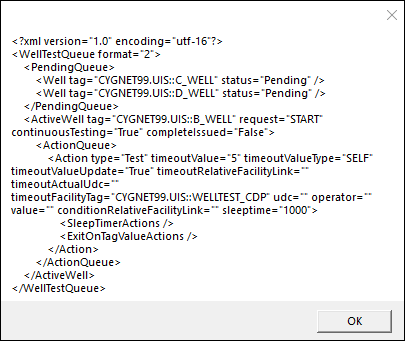
- Read Queue — Click to display the current status of the well test queue, sample shown below.
- Clear Queue — Click to clear the well test queue.
|
Sample Read Queue popup |