Headers Page
The Headers page of the well test configuration control defines the list of headers included in each well test configuration. Each header corresponds to a separator facility, and this is where you define its point tag, properties, and the associated wells.
The Headers page consists of the following sections:
Screen designer tip:
You can hide this page by disabling the Show headers property in the Canvas Design view.
|
Click the thumbnail to see the |
Click the thumbnail to see |
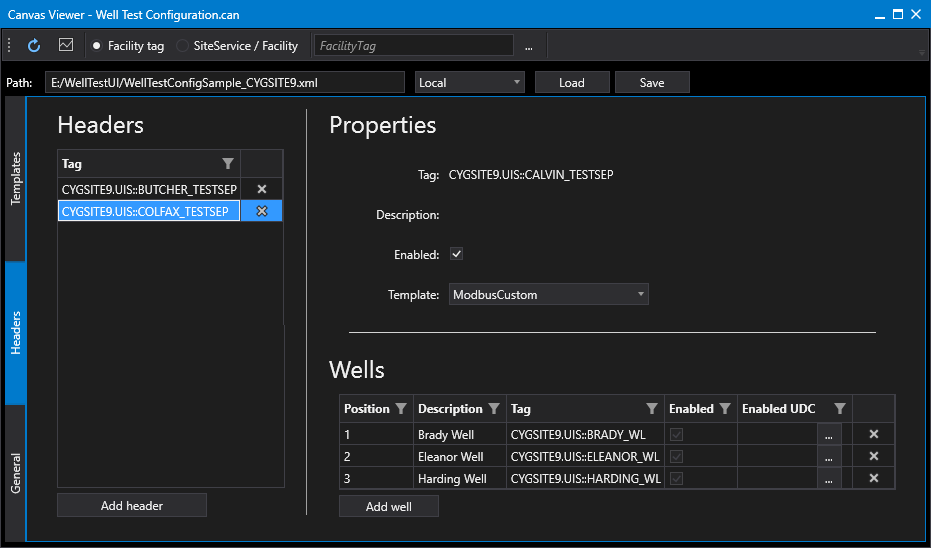
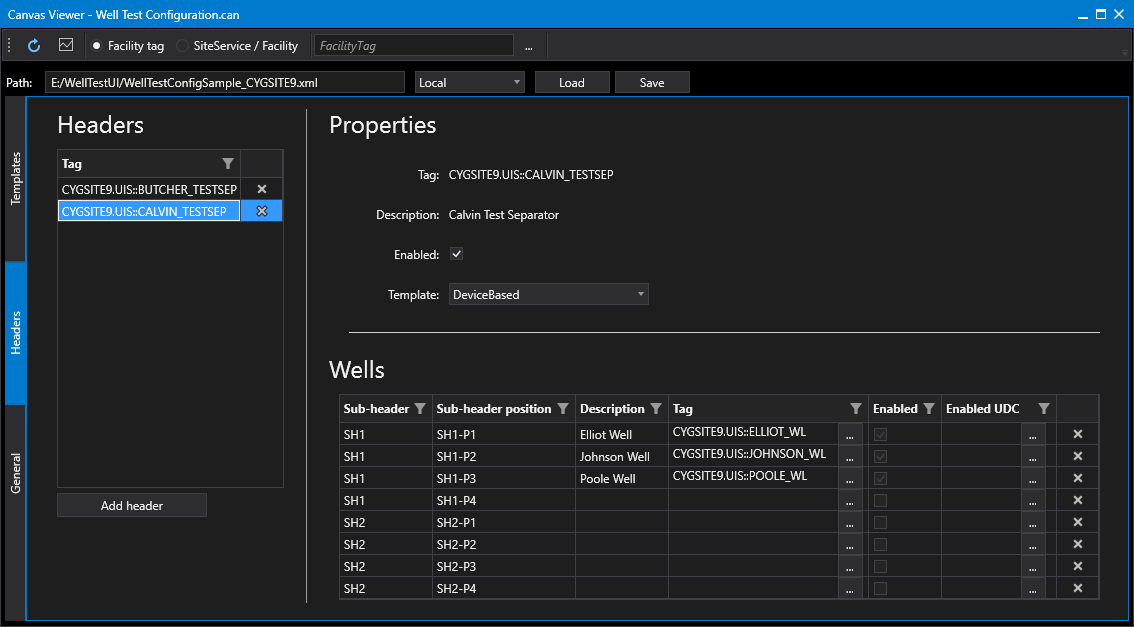
To configure Well Test Headers
Perform the following steps to configure the headers properties, referring to the property definitions below:
- Click the Headers tab on the left side of the screen.
- Click Add header or click on previously configured header.
- Configure the Enabled check box and Template to be used with this header.
- Click to Add well or click on previously configured well.
- Click to Enable the well and add the Enabled UDC.
- Save any changes. The status of a newly added Header is Idle.
- Click the Templates tab on the left side of the screen to continue well test configuration.
Headers
The Headers section of the Headers page defines the headers to be included in each well test operation.
| Property | Description | XML |
|---|---|---|
|
Tag |
Specifies the fully qualified facility tag of the well test header facility in the format: site.service::facility_id. |
|
|
Add header |
|
|
|
Delete header |
|
 to select a facility tag for the new header.
Properties
The Properties section of the Headers page defines the general properties of each header included in the well test operation.
| Property | Description | XML |
|---|---|---|
|
Tag |
Specifies the fully qualified facility tag of the well test header facility in the format: site.service::facility_id. |
|
|
Description |
Specifies the description of the well test header facility retrieved from the Facility service. |
|
|
Enabled |
Indicates whether the header is enabled. Options include True or False. |
|
|
Template |
Specifies the name of the header template to use for this header, which must match a defined header template name. The header template name, type, queue UDC, valve positions, and related commands are defined in the <HeaderTemplate> element. More than one header can use the same template. |
Wells
The Wells section of the Headers page defines the wells associated with each header. Each well is associated with a facility tag, a position number, enabled value or enabled UDC, and a sequence number or sequence UDC. Only enabled wells will be tested. The configuration options in the Wells grid differs depending on the template type and the sub-header configuration on the Templates page.
|
Click the thumbnail to see the |
Click the thumbnail to see the |
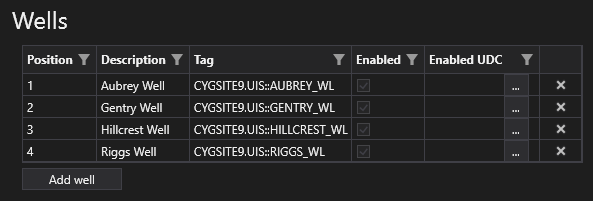
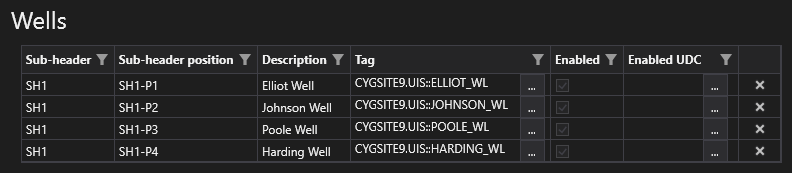
Sub-headers and sub-header positions
When a header is associated with a template that has sub-headers enabled, the Wells grid will show all the available sub-header and sub-header position combinations along with any configured wells.
- To associate a well with a sub-header and sub-header position, click the browse button in the Tag column to open the Select Facility Tag dialog box and select the appropriate well facility
- To remove a well from a position, click
 (Delete well) at the end of the row
See Positions, Headers, and Sub-Headers for more information.
| Property | Description | XML |
|---|---|---|
|
Position |
Specifies the position number for the well. This must line up with one of the positions in the associated header template. Values include 1, 2, 3, …, n. |
|
|
Sequence |
Specifies the sequence number for the well. Determines the order in which the wells are tested in the queue. The Wells queue will be updated using the current value of Sequence or Sequence UDC before starting the next test, so that the queue can change dynamically each time a new test for any position on the Header is started. When using the Continuous or Schedule queue actions, the well test will follow the sequence order. The Well Test service reads the queue, completes the pending queue and then re-reads the configuration, pulling in the wells in the order of the sequence. Values include 1, 2, 3, …, n. The Well.GetSequence() method in the CygNet.API.WellTest returns the sequence order. Note: Read the definition for the sequenceUdc attribute for further usage notes on this attribute. |
|
|
Description |
Specifies the description of the well facility retrieved from the Facility service. |
|
|
Tag |
Specifies the fully qualified facility tag of the well in the format: site.service::facility_id. E.g., MYSITE.UIS::AMANDA_WL.
|
|
|
Sub-header |
For a template with sub-headers: Specifies a text-based descriptor of the sub-header/header within the well test facility to which the position is connected. This description, in combination with sub-header position, should represent a unique value. |
|
|
Sub-header position |
For a template with sub-headers: Specifies a text-based descriptor of the position on the sub-header to which the unique position identifier is connected. |
|
|
Enabled |
Specifies whether the well can be tested. While it is possible for the header queue to contain wells that are disabled, only enabled wells will be tested. When a well is read from the top of the header queue, prior to testing, the enabled attribute will be read.
Note: Make sure you read the definition for the enabledUdc attribute for further usage notes on the enabled attribute. Options include True or False. |
|
|
Enabled UDC |
The Enabled UDC property (enabledUdc) allows the configuration of the Enabled (enabled) property by point. The defined UDC will be combined with the facility tag to formulate a point. The Enabled UDC Property /enabledUdc attribute takes precedence over the Enabled (enabled). Click the browse button to open the Select UDC dialog box and select an appropriate UDC.
Note: This attribute allows manipulation of a well's enabled/disabled status external to the Canvas Well Test Status screen, and the CygNet Well Test Module. |
|
|
Sequence UDC |
The Sequence UDC property / sequenceUdc attribute allows the adjustment of a well's Sequence (sequence) assignment by UDC to manage the order of well in the test on the fly. The Wells queue will be updated using the current value of Sequence or Sequence UDC before starting the next test, so that the queue can change dynamically each time a new test for any position on the Header is started. Specify a Sequence number in the well test configuration or a Sequence UDC to take a value from a point value. When using the Continuous or Schedule queue actions, the test will follow the sequence order. The UDC will be combined with the facility tag to formulate a point. Click the browse button to open the Select UDC dialog box and select the appropriate UDC, "SEQ".
Note: This attribute allows manipulation of a well's sequence external to the Canvas Well Test Status screen, and the CygNet Well Test Module. |
|
|
Add well |
For a template without sub-headers:
|
|
|
Delete well |
|
 to select a facility tag for the new well in this header.

