 The Chart is a CygNet-aware control that provides a customizable means to visualize point values and historical CygNet data in several types of charts. The Canvas chart is highly configurable and supports the following options:
- an unlimited number of y-axes that can be styled as desired
- an unlimited number of series that can be styled as desired, optionally displaying historical rollup values
- hide or show data points marked as unreliable
- configurable date ranges, both relative and absolute
- live data updates at a configured interval allowing the chart to trend data at a real-time pace
- the display of time slices and tooltips
- optional, configurable legend options (date and value format, dynamic text display based on real-time properties, or series Name)
- configurable x- and y-axis features (label color, position, tick color, and title)
- a configurable toolbar (position, live update toggle buttons, configure time range, any number of quick range buttons, and other functional buttons)
- dragging, panning, and zooming in run mode
- support for native CygNet data and non-CygNet data via script.
Other run-mode options include stopping/restarting live updates, changing the date and time range, saving/opening a chart's configuration as a default chart, printing the current chart, export as an image, and export data to a .csv (Comma Separated Values) file.
This control is supported in the Canvas Native view and the CygNet TWC web view.
The y-axis of a chart typically displays increments of data according to the selected data's relevant unit type. The unit type derives from the associated data type's point record in the Point Service (PNT). The x-axes always displays increments of time units. The data increments and time units displayed on the axes are user defined.
In addition to simple design mode property configuration, you can display a draft chart while in design mode without having to switch to preview, making screen building more efficient.
Note:  The Chart control does not support the following features in the CygNet Thin Web Client: multiple y-axes, history rollups, series type other than line, series appearance properties, zooming and panning, and scripting.
Chart Example
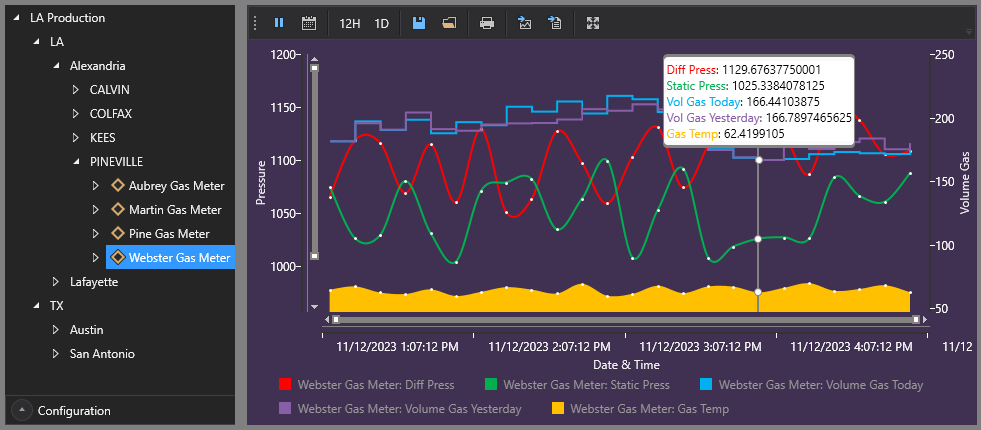
The following image shows a chart with two y-axes, multiple series, and a time slice. The facility is determined by the selection in the Tag Chooser at the left.
|
Sample Chart driven by facilities selected in the Tag Chooser |
Property Inheritance
Property Inheritance
Property inheritance, or sending and receiving, is a widely used concept in Canvas. The application supports an explicit relationship between screens, objects, and controls, where certain property values, such as facilities and SiteService details, are passed from one element to another via an inheritance framework. Screens, objects, and controls can be configured as property senders or property receivers and provide configuration options where you can explicitly define the source of the facility and SiteService. Depending on how you have your screens, objects, and controls configured, the facility and SiteService may be received from any one of the following sources:
- from itself — indicated by selecting <Self> and then explicitly configuring the property
- received from the screen — indicated by selecting Screen, which is always present as a sender
- received from another control — indicated by selecting the Name of the sending control.
Broadcasting
Screens and objects support an additional notification option to broadcast their facility and SiteService selection changes to other open screens. If configured, a <Broadcast> option is available to source the screen's facility and SiteService properties from another open screen.
For example, a Text Tool can be configured to get its facility from the screen and the screen can be configured to get its facility from a Tag Chooser. Or Screen_A might source its facility from Screen_B, which gets its facility from a Tag Chooser.
Receiver or Sender
The chart control supports property inheritance as a receiver of its SiteService and facility:
| Receive | Send | ||
|---|---|---|---|
| SiteService | Facility | SiteService | Facility |
| self screen |
self screen other controls |
none | none |
The chart does not send its SiteService or facility to other controls.
Drag and Drop
Canvas charts are highly configurable in design mode, but also in run mode. Through the power of inheritance, you can configure a chart to show data for an element (for example, a facility or a UDC), and then in run mode you can drag and drop different elements from other controls (for example, the Tag Chooser) onto your chart to dynamically display related data.


