
 The Relative Facility Tree displays a hierarchical tree of CygNet facilities based on the relative facility settings defined for Canvas (configured in the Backstage view, stored in the global settings file). The control takes a source Site.Service, adds a facility filter (if provided), and generates a navigable tree. The control can be used as the primary navigational control on your screens to drive other controls by passing in facilities, allowing the creation and implementation of templated screens.
The idea behind the control is to present a navigation model that closely resembles field operations without the overhead of a group hierarchy. You can build a similar navigation tree with the Tag Chooser using the Group hierarchy type; however, the Relative Facility Tree draws directly from the Facility service to build its tree, without dealing with Group service nodes. Also, you can designate different starting points, for example, a Central Delivery Point (CDP) vs. a Well, without the need to build up different group hierarchies.
Another advantage of this control over the Tag Chooser (with Group hierarchy) is that the Relative Facility Tree control supports three different selection actions:
- Simple facility sender to other controls
- Navigation by facility to other associated screens by script, hyperlinking, or via the Navigator control
- Custom script execution
By designing a set of templated screens for CDPs, Wells, Tank Batteries, Tanks, etc. you can quickly create a powerful workflow using the Relative Facility Tree and an Object Viewer or Navigator control.
Relative Facility Tree Example
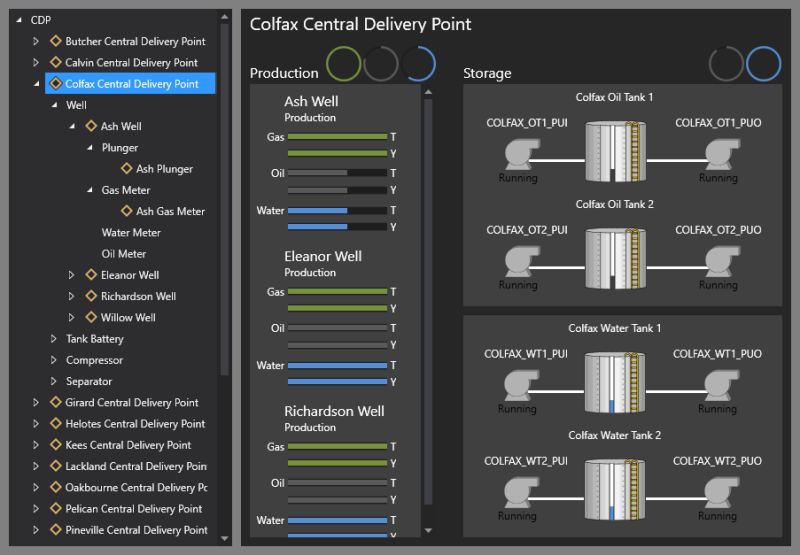
The following image shows a Relative Facility Tree and several other controls and objects.
|
|
|
Relative Facility Tree (on left) showing a hierarchy of central delivery points and child wells. |
Scripting Options
The Relative Facility Tree allows for several scripting options to create efficient workflows in your screens. A few examples include:
- The Navigation by Facility feature provides scripting options similar to those employed by the Search Box.
- You can script the facility link that the control uses for its top level. For example, you might show a view based on CDPs and then add a button or other control that the user can select to change the view to Wells.
- You can script the facility filter to provide greater granularity over your facilities.
Property Inheritance
Property Inheritance
Property inheritance, or sending and receiving, is a widely used concept in Canvas. The application supports an explicit relationship between screens, objects, and controls, where certain property values, such as facilities and SiteService details, are passed from one element to another via an inheritance framework. Screens, objects, and controls can be configured as property senders or property receivers and provide configuration options where you can explicitly define the source of the facility and SiteService. Depending on how you have your screens, objects, and controls configured, the facility and SiteService may be received from any one of the following sources:
- from itself — indicated by selecting <Self> and then explicitly configuring the property
- received from the screen — indicated by selecting Screen, which is always present as a sender
- received from another control — indicated by selecting the Name of the sending control.
Broadcasting
Screens and objects support an additional notification option to broadcast their facility and SiteService selection changes to other open screens. If configured, a <Broadcast> option is available to source the screen's facility and SiteService properties from another open screen.
For example, a Text Tool can be configured to get its facility from the screen and the screen can be configured to get its facility from a Tag Chooser. Or Screen_A might source its facility from Screen_B, which gets its facility from a Tag Chooser.
Receiver or Sender
The Relative Facility Tree control supports property inheritance as a sender of its facility to the screen and to other controls on the screen:
| Receive from | Send to | ||
|---|---|---|---|
| SiteService | Facility | SiteService | Facility |
| none | none | none | screen other controls |
The Relative Facility Tree does not receive its Site Service or facility from the screen or other controls on the screen.


