 The UIS Command Button is a CygNet-aware single-value control that can be used to add buttons to your screens that send any kind of UIS command for a specified facility without scripting. Supported properties include the name of the command as defined in the DDS and the command's parameters and values, which can be pre-defined in the button or the button can be configured to prompt the user for a parameter value. Additional support includes a status point UDC to monitor the status of the UIS command, an option to enable or disable the button while the command is in progress, and support to prompt a user for confirmation to send the command. The Canvas version of this control is similar to the UIS Command Button in CygNet Studio. Several other configurable properties are supported, including:
- The control's color elements can be set to one of the following options: a) automatically follow the selected application theme regardless of the underlying color palette used, b) sourced from the point state color defined for the associated point, or c) be explicitly configured.
- Colors displayed in the control can be overridden when a custom color palette is selected for the screen.
- Alarm indication (blinking) is supported for the button's background, text, and border when the associated point is in alarm.
- Date, time, and value formatting for the text displayed on the control is supported.
- The control optionally can be hidden if the associated point tag is invalid.
- The mouse cursor that appears when the mouse hovers over the control is configurable.
- Font sizing, text styling, and text weighting are also configurable.
- This control supports tooltips, which can be displayed as tokenized text, a Canvas object, or the tooltip can be scripted to retrieve and display values for related points or CygNet notes.
- Buttons also support the addition of an image.
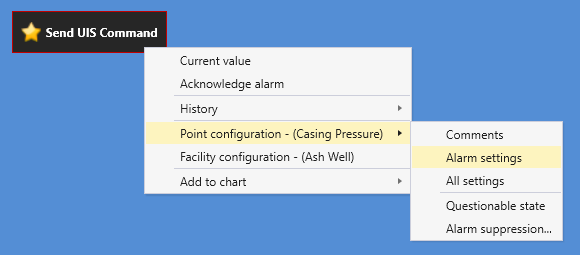
- In the Canvas Native view a context menu is available at runtime with access to CygNet point and alarm data, including alarm acknowledgment, current and history values, point and facility configuration, and trending point data on a default chart. Custom context menu items can be scripted allowing customized control behavior.
- In the CygNet TWC web view a context menu is available with access to CygNet point and alarm data, including current value details, alarm acknowledgment, alarm summary, and trending point data on a quick chart. The TWC context menu also supports adding any CygNet point presented in the main web view to an ad hoc chart.
The button shares many properties, events, and methods with the standard Canvas Button control.
This control is supported in the Canvas Native view and the CygNet TWC web view.
UIS Command Button Example
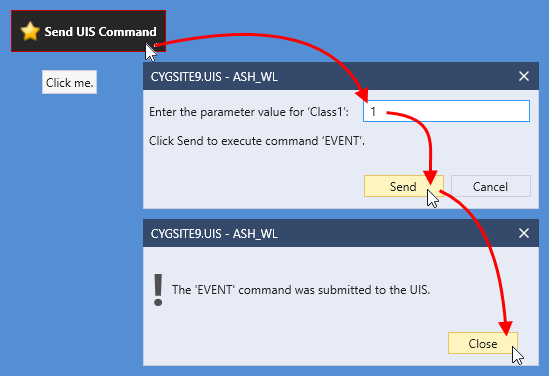
The following images show an example UIS Command Button.
|
|
Property Inheritance
Property Inheritance
Property inheritance, or sending and receiving, is a widely used concept in Canvas. The application supports an explicit relationship between screens, objects, and controls, where certain property values, such as facilities and SiteService details, are passed from one element to another via an inheritance framework. Screens, objects, and controls can be configured as property senders or property receivers and provide configuration options where you can explicitly define the source of the facility and SiteService. Depending on how you have your screens, objects, and controls configured, the facility and SiteService may be received from any one of the following sources:
- from itself — indicated by selecting <Self> and then explicitly configuring the property
- received from the screen — indicated by selecting Screen, which is always present as a sender
- received from another control — indicated by selecting the Name of the sending control.
Broadcasting
Screens and objects support an additional notification option to broadcast their facility and SiteService selection changes to other open screens. If configured, a <Broadcast> option is available to source the screen's facility and SiteService properties from another open screen.
For example, a Text Tool can be configured to get its facility from the screen and the screen can be configured to get its facility from a Tag Chooser. Or Screen_A might source its facility from Screen_B, which gets its facility from a Tag Chooser.
Receiver or Sender
The button supports property inheritance as a receiver of its SiteService and facility:
| Receive from | Send to | ||
|---|---|---|---|
| SiteService | Facility | SiteService | Facility |
| self screen |
self screen other controls |
none | none |
The button does not send its SiteService or facility to other controls.


