Customizing the Workspace
The Canvas user interface is flexible and easy to customize to meet your workspace needs. Following are some of the ways you can customize the main workspace.
Pane Title Bar
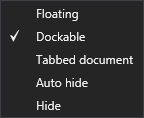 In each pane's title bar, several options allow you to select how to display the pane by default (whether to float, dock, auto-hide, or hide it), pin the pane in place, or close the pane. Unpinning (or hiding) a pane when not in use gains extra space for viewing your current screen or another open pane. Closing a pane can also occur from the title bar by clicking
  . Right-click the pane title bar or click
  (menu chooser) to reveal the following context menu:
Floating and Moving Panes
You can float any pane by clicking the title bar and dragging it down until it floats. Another way to float a pane is to right-click the title bar and select Floating. Hold down your mouse and drag a window pane to where you want it, including outside the confines of the Canvas window. If you drop a window pane at a random location inside or outside the application window, it becomes a "floating" window. You can easily resize the floating panes by clicking the edge of the element and dragging the mouse to the desired size.
Docked Panes
Docking a pane that is floating means to attach it to a part of the application window. To do this, right-click the title bar and select Dockable, then drag the pane to the edge where you want to dock it and drop it onto one of the small squares that appear in the interface. The portion of the square that has color indicates where the window pane will be docked, for example,

|
Dock in the center of the workspace |
|

|
Dock on the left side of the workspace |
|

|
Dock on the right side of the workspace |
|

|
Dock on the top side of the workspace |
|

|
Dock on the bottom side of the workspace |
Tabbed Documents
Canvas screens in design mode are tabbed by default, meaning each screen is contained within the single central window, and each screen has a tab in the upper left for switching between each screen.
Note: Screens opened in Canvas.View are not tabbed by default but can quickly be tabbed by right-clicking the title bar and selecting Tabbed document.
Hide (or Pin) Panes
Click  (pin) on the pane title bar to hide the pane (or "pinned" to the edge of the application window). However, you can still see the title of the pane along the edge of the program window. When you hover over the title, the pane temporarily displays again until you move the mouse off the pane. Click
  (un-pin) again to "un-pin" the pane and return it to its previous location.
Change the Color Theme
See Changing the Canvas Color Theme for more information.
Save the Workspace
When you move panes around in the interface, the configuration (or "layout") of the workspace is changed. Each time you close the application the workspace settings are saved to a file called canvas.workspace and stored in Users\<CurrentUser>\AppData\Roaming\Canvas. See Access General Settings for more information.
Reset the Workspace
If your workspace is in a state such that you want to just start fresh, you can:
- In the Backstage view, click General Settings and then Settings folder to access your settings files.
- Close the Canvas application.
- Find the canvas.workspace file (Users\<CurrentUser>\AppData\Roaming\Canvas) and delete it. The workspace will be reset, and the file will be regenerated the next time Canvas is closed.


