Configuring Control Properties
|
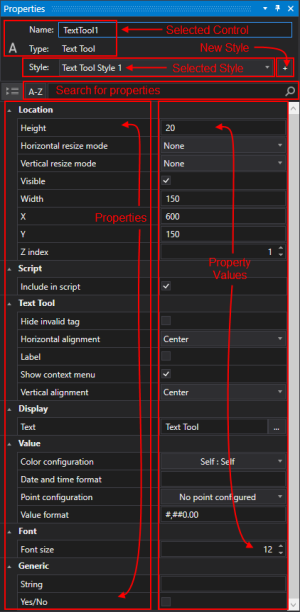
On the Canvas toolbar, click Use the Properties pane to access, edit, and customize properties of your screen and its controls or objects. The pane displays available property details of the screen or object that is currently selected. Categorizing, Sorting, and Finding PropertiesYou can click You can expand and collapse each property category by clicking Changing the Property of a Single ControlTo change the property of a single control, select the control by click on it, or dragging around the control with the mouse. Each property has a corresponding type. All associated properties of the selected control are presented in the Properties pane. Several different kinds of configuration controls are used to configure properties:
Once you type or select the new property value, you click off of the field to save the change.
|
A sample Properties pane |
|
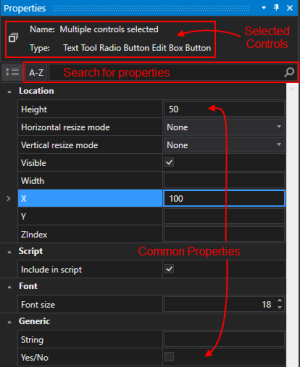
Changing the Properties of Multiple ControlsYou can change the properties of multiple controls at the same time. To change a common property for more than one control, select the controls using Click and Ctrl+Click, or dragging around the controls with the mouse. All common properties of the selected controls are presented in the Properties pane. When you have multiple controls selected, the Properties pane shows Multiple controls selected in the Name property. If the property shows a value, then all controls are set to the same value. If the property value is blank, then the controls have different values for that property, or they all have a blank value. In the example at the right, the value for the X property is showing 100 because all of the selected controls have this same property value. Conversely, the value for the Width property is blank because each control is assigned a different Width. If you change the value of any property it will apply to all selected controls. You can also select multiple controls in the Controls view and edit common properties at the same time. Note: When selecting multiple controls, non-selected controls will fade to highlight the selected ones. |
A sample Properties pane |
 (Display properties) to display a Properties pane in your application window or to hide the currently open pane.
  (Categorize), click
  (Alphabetical within Category) or click
  (Search) within the properties using the features located immediately above the properties list. The search box is useful to help locate a property when an object contains many properties. For clarity, when you enter a search term, items matching your entry string remain displayed and non-matching items are temporarily hidden. Clear the search box to display the full properties list again.
 or
or  next to the group name or simply clicking anywhere in the category heading.