Using Historical Playback

The Historical Playback bar is a run-mode feature that allows a screen to be "replayed" using historical data rather than showing current data in any controls that show current values. You can continuously stream historical data, or step incrementally through the data, or jump back to the most current timestamp at any time. Historical playback applies to all open screens with controls showing current values. The timestamp of the request is shown on the History Playback bar. When the screen is in live mode (showing current values), the data field on the bar displays "Now". Date ranges, play rate, and step rate are configured in run mode; the default play rate is every 1000 milliseconds (1 second) and the default step rate is every 4 hours.
Note: The requested time is not necessarily the timestamp of the data. The data displayed will be from the timestamp closest to the requested time without exceeding it.
|
Historical Playback - Current Date |
Historical Playback - Historical Date |


See the following sections for more information about this feature:
Open the Historical Playback Bar
Historical playback is accessed in run mode two ways:
- Via a screen's context menu. Right-click anywhere within an open screen and select "Show historical playback"
- In Canvas.View a toolbar icon,
 (Show historical playback), also provides to access the Historical Playback bar
Historical Playback Toolbar
The Historical Playback toolbar contains the following configuration items and action icons:
| Icon | Tooltip | Description |
|---|---|---|
|
|
Showing current values. Click to enable historical playback mode |
This icon indicates that historical playback is set to current values. The date indicator displays "Now." Click the icon to switch to historical values and configure the desired start date. |
|
|
Showing historical values. Click to enable current values |
This icon indicates that historical playback is set to historical values. The date indicator displays the configured historical data and time. Click the icon to switch to current values. Note: When historical playback is playing (in either direction), this icon will blink. |
|
|
Current point-in-time. Expand to set date/time manually |
Indicates the time mode for historical playback: either Now or a historical date. If Historical Playback is in historical mode:
Note: When historical playback is playing (in either direction), this timestamp will change as the timestamp of the data changes. |

|
Expand to configure historical playback |
|
|
|
Step playback backward |
Click to step backwards through the historical data at the configured step interval. |
|
|
Start playback backward |
Click to play historical playback in a backward direction at the configured play rate. |
|
|
Stop playback |
Click to stop historical playback. |
|
|
Pause playback |
Click to pause historical playback. |
|
|
Start playback forward |
Click to play historical playback in a forward direction at the configured play rate. |
|
|
Step playback forward |
Click to step forwards through the historical data at the configured step interval. |



Configure Historical Playback
The Historical Playback has two configurations fields:
- one for manually setting a start date and time for the playback
- one for configuring a date range, the step time span, and the update rate for the historical playback
Set date and time
Use the first configuration field to set a historical date from where to start the playback.
|
Historical Playback - Set Date and Time |
Historical Playback - Date Configuration |
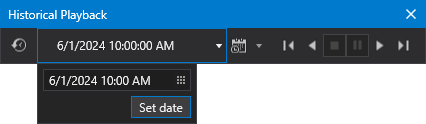
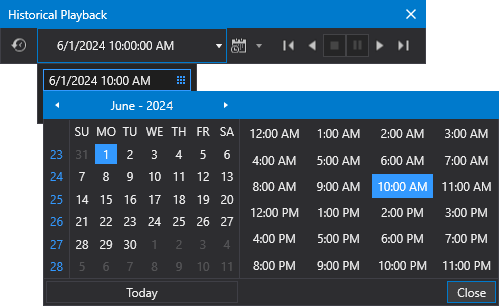
- Click
 to switch to historical playback mode.
 - Click
 to the right of the date to access the date configuration.
 - Click
 to change the date using the date picker.
 - Click Set date to set the selected date as the historical start date.
- Click elsewhere in the Historical Playback bar to close the configuration drop-down. Historical playback is ready to start.
Configure historical playback
Use the main configuration field to configure a date range, the step time span, and the play rate for the historical playback.
|
Historical Playback - Configuration |
Historical Playback - Step Configuration |
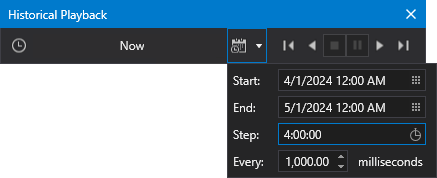
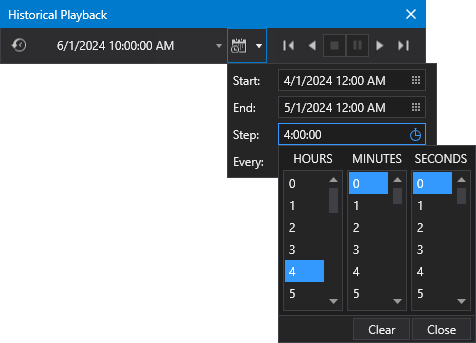
- Click to access the configuration drop-down.
- Click to change the Start and End date using the date picker.
- Click
 to change the time span for the step increment. The default playback step span is four hours.
- Select the desired Hours, Minutes, and Seconds from the selectors.
- Click Clear to remove all Step settings.
- Click Close to close this drop-down.
- Click the numeric spin control next to Every to indicate how often the playback will change or play. The default playback rate is every 1000 milliseconds (1 second).
- Click elsewhere in the Historical Playback bar to close the configuration drop-down. Historical playback is ready to start.
Use Historical Playback
Once you have configured the dates, step time span, and play rate you are ready to use historical playback. The six buttons on the toolbar control the playback for your screen. Refer to the table above for button functionality.
Scripting Historical Playback
You can add a button (or other control) to a screen to launch the Historical Playback bar.
Example
The script call is as follows:
var window = new Canvas.Shared.View.CanvasMainWindowBase();
window.ShowHistoricalPlaybackDialog();

