|
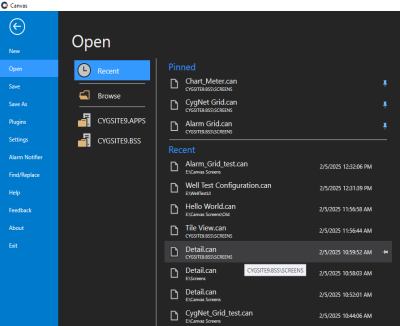
Canvas and Canvas.View display the last several documents you have opened so that you can use those links to quickly access regularly used screens. The Recent files list can contain two groups of files:
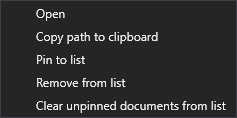
The Pinned list displays the file name, location, and a pin button to unpin the screens from this list. The Recent list will display the file name, location, last time the file was opened, and a hidden pin button to pin screens you want to keep listed indefinitely. If you close a screen, and then move it to another location, such as by using Windows Explorer, the link to that file will no longer work, and a warning will indicate that Canvas cannot open the file. You must use the Open dialog box to browse to the file to open it. After you open and save the file in its new location, that link is added to the list. The old file location will remain in the Recent list until you have opened 10 other files. Recent Screens Context MenuThe Recent Screens section of the Open page of the Backstage view has a small context menu to allow easy management of the files in the list. Right-click any file name to perform the following actions:
|
Open recent screens |
Open Pinned or Recent Screens
 To open a screen in the Pinned or Recent list
- Click File or
 to access the Backstage view.
 - Move the cursor to the Recent area of the Backstage view to see a list of the recently opened files.
- Click the file you want to open or right-click and select Open.
- The selected screen will open in the main Canvas or Canvas.View window.
- When you return to the Recent list the most recently opened screen will be at the top of the list. Pinned screens stay in the Pinned list in the order in which they were opened.
- Use the context menu to manage your Pinned and Recent files.
Pin Recent Screens
To pin a popular screen to the Recent list indefinitely
- Click File or to access the Backstage view.
- Move the cursor to the Recent area of the Backstage view to see a list of the recently opened files.
- Select the file you want to keep, and then click
 (pin) on the right, or right-click and select Pin to list. The file is moved to the top of the Pinned group.
 - Click
 (pin) again, or right-click and select Unpin from list to unpin the file. The file is moved to the Recent group if it still meets the aging requirements, or it is removed from both lists.
 - Use the context menu to manage your Pinned and Recent files.


