Saving Screens and Objects
On the Canvas toolbar, click  (Save currently selected screen (Ctrl+S)) to save the current screen file. Once a screen or object has been named and saved, its name will appear on its tab in the Screen pane when it is reopened.
- New screens — Clicking Save or Crtl+S opens the Save as screen in the Backstage view so that you can navigate to a designated location, add a new folder, provide a file name for the new screen, and then save the file. You can save to an APPS or BSS folder or a local or network file-system folder .
- Saving to a Windows file-system folder — Click Browse to open the Windows Save As dialog box. Find the desired folder location, type a File name, and click Save. Right-click to view the context menu to make a New folder as necessary.

- Saving to a CygNet APPS or BSS folder — Click an APPS or BSS folder. Find the desired folder location, type a File name, and click Save as.
- Or click the
 Add to make a New subfolder as necessary. Type a folder name and click
  to accept the new folder name. Select the new folder, type a File name, and click Save as.
- Or click the
- Saving to a Windows file-system folder — Click Browse to open the Windows Save As dialog box. Find the desired folder location, type a File name, and click Save. Right-click to view the context menu to make a New folder as necessary.
- Existing screens — Clicking Save or Crtl+S saves the file to its previously designated folder location
Note: Access Save as via the Backstage view to edit an existing screen file name or make changes to its folder location.
Naming Screens
When naming Canvas files, only use alphanumeric characters 0-9, a-z, and the set of characters generally acceptable for your Windows operating system. Certain characters are reserved for specific meanings, so do not use them when naming files. The following characters are not permitted: < (less than), > (greater than), : (colon), " (double quote), / (forward slash), \ (backslash), | (vertical bar or pipe), ? (question mark), or * (asterisk).
Canvas File Names
Spaces in Canvas screen file names are valid when saving screens Canvas for view in the Native target environment; however, spaces are not permitted in a Thin Web Client page directive (URL). A Canvas screen file name for a screen intended to be viewed in the Canvas Native view is limited to the following characters: a-z A-Z 0-9 -._~. No special characters are permitted, other than -._~. Spaces in Canvas screen file names are valid when saving screens for use in the Canvas Native view only.
A Canvas screen file name for a screen intended to be published and viewed in the CygNet TWC web view is limited to the following characters: a-z A-Z 0-9 -._~. No spaces or special characters are permitted, other than -._~.
The TWC publishing service contains a file name check to detect spaces and invalid characters in a Canvas screen file name. If your screens have invalid characters in their file names, and the target environment is Web client, you will see an Error in the Publishing service when publishing these files, which will be reported in the Details pane on the Publishing page in Backstage view > Web Settings.
Save Canvas Files in BSS
All Canvas screen files (and any associated images) intended for inclusion in a Thin Web Client application must be saved in a folder in the BSS.
Closing an Unsaved Screen
|
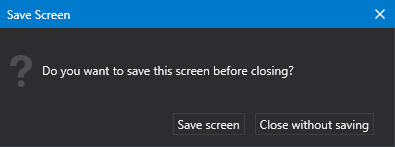
When closing an unsaved screen (by clicking the X button), and you have not previously saved the screen, you will see a Save Screen message. Do one of the following:
|
|
||
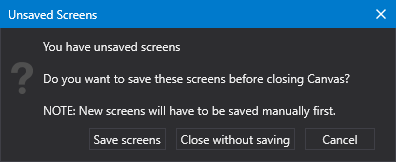
Saving when Closing the Canvas ApplicationWhen closing Canvas (by either via Backstage view > Exit or clicking the X button), and you have unsaved screens, you will see an Unsaved Screens message. Do one of the following:
|
|