Alarm Grid Columns
|
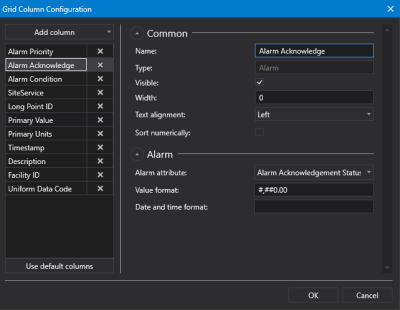
Sample Alarm Grid Column Configuration dialog box |
- Click
 to open the Alarm Grid Column Configuration dialog box.
 - Click Use default columns to add 11 default columns: Alarm Priority, Alarm Acknowledge, Alarm Condition, SiteService, Long Point ID, Primary Value, Primary Units, Timestamp, Description, Facility ID, and Uniform Data Code.
- Or click Add column to add a new, blank column type from the drop-down menu: Alarm Column, Facility Column, Generic Column, and Point Column.
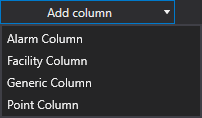
- Alarm column — An alarm column presents data for a point by an alarm attribute.
- Facility column — A facility column presents data for a point by a facility attribute. You can choose to resolve the facility to a relative facility if desired.
- Generic column — A generic column can display any kind of scripted data of your choosing using C# or VB.NET at runtime. First configure the column in Canvas and then reference the column by name to pull in CygNet or other values. A generic column can be used to discover data defined in a supporting script. If the column is defined, but no data is defined, then the column is hidden by default. The cells in a generic column can be configured to be editable in run mode, so that, for example, users could make quick data changes to facilities in a grid format. Changed values are not saved anywhere but in the grid, but they can be saved or otherwise manipulated via script.

- Point column — A point column presents data for a point by UDC and point attribute. You can choose to resolve the point to a relative facility if desired. The property sheet displays Common and Point properties. Point column types also support a Summary row at the bottom of the grid that can show the following values for the data in the column: a total Count, a Sum, the Min value, the Max value, the Min and Max values, and the Mean value.
- The Alarm Grid Column properties are grouped into several property groups: the Alarm properties are available only to the Alarm column, the Common properties are shared by all column types; the Facility properties are available only to Facility columns, the Point properties are available only to Point columns, and the Summary properties are available only to Point columns.
-
Click
 to expand each property group as necessary. Click
  to collapse each property group as necessary.
 - Complete the column configuration to suit your needs using the property groups described below:
- Alarm property group (Alarm column only)
- Common property group (All column types)
- Facility property group (Facility column only)
- Point property group (Point column only)
- Summary property group (Point column only)
- Repeat for each column.
- Reorder your columns by selecting, then dragging or dropping the column name to a new location in the column list.
- Or click
 (Delete column) to remove a column from the grid as necessary.
 - Once the desired columns are configured, click OK to save.
- Or click Cancel to abort and close the Grid Column Configuration dialog box.