Chart Series
|
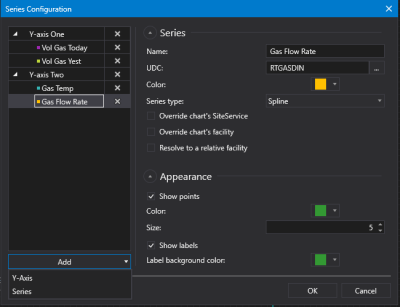
Sample Series Configuration dialog box |
- Click
 to open the Series Configuration dialog box.
 - Click Add to add a y-axis or series from the Add drop-down menu.
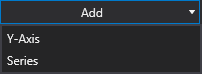
- Click Add > Y-Axis to add a new, blank y-axis to the chart. Complete the new y-axis configuration to suit your needs using the properties described below.
- Click Add > Series to add a new, blank series to a y-axis. The Series properties are organized into four property groups: Series, Appearance, Rollup, and Data source. Click
 to expand each property group as necessary. Click
  to collapse each property group as necessary.
 - Each new series is assigned a dynamically generated color, which can be changed later as necessary. Complete the new series configuration to suit your needs using the properties described below.
- Or click
 (Delete) to remove a series from a y-axis or remove a y-axis from the chart as necessary.
 - Once the desired y-axes and series are configured, click OK to save.
- Or click Cancel to abort and close the Series Configuration dialog box.