Combo Box Items
|
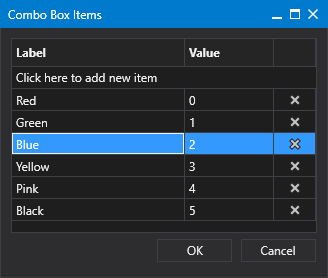
Sample Combo Box Items Configuration dialog box |
- Click
 to open Combo Box Items dialog box.
 - Click in the area titled Click here to add new... to add a new item for the drop-down menu.
- Type a Label name and press enter. The Label property specifies the label for an item in the Combo Box drop-down menu.
- Type a Value for this item, if required. The Value property specifies the value for the item in the Combo Box drop-down menu.
- Rows can be easily reordered by dragging and dropping an item to a new location in the list.
- Or click
 (Delete row) to remove a selected row as necessary.
 - Once the list is configured, click OK to save.
- Or click Cancel to abort and close the Combo Box Items dialog box.