Custom Context Menu Items
Perform the following steps to configure a custom context menu.
|
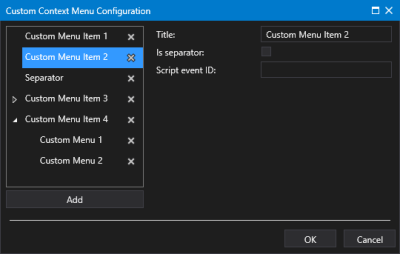
Sample Custom Context Menu Configuration dialog box |
- Click
 to open Custom Context Menu Configuration dialog box.
 - Click Add to add a menu item.
- To add child menu items, select the parent menu item and click Add. You can add multiple nested menu items if desired.
- Click
 to expand the menu items.
 - For each menu item click on <New> to reveal the properties:
- Title —
 The Title property specifies the menu name to be displayed in the runtime context menu.
 - Is separator — The Is separator check box indicates whether this menu item will be a separator line in the menu at runtime. Once saved the separator has no configuration and no children. Separators do not have event IDs. Any event ID on a menu item when it’s converted to a separator is deleted. You can give it a title of 'Separator" or "----------" if desired.
- Script event ID —
 The Script event ID specifies the event ID that will be called when the menu item is selected from the runtime right-click context menu. The event ID is passed in as a parameter into the Custom Context Menu Action event, along with other relevant information in the context of the click, for example, facility or point tag, as appropriate.
- Title —
- Menu items can be easily reordered by dragging and dropping an item to a new location in the list.
- Or click
 (Delete this item and its children) to remove a selected menu item as necessary.
 - Once the context menu items are configured, click OK to save.
- Or click Cancel to abort and close the Custom Context Menu Configuration dialog box.