CygNet Grid Columns
|
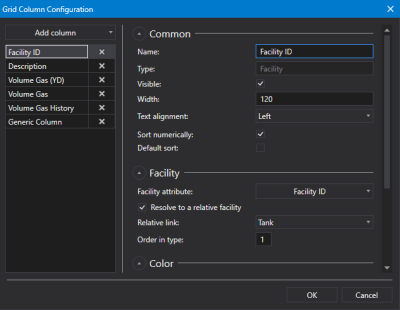
Sample CygNet Grid Column Configuration dialog box |
- Click
 to open the CygNet Grid Column Configuration dialog box.
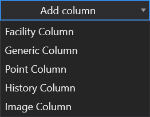
 - Click Add column to add a new, blank column type from the drop-down menu: Facility Column, Generic Column, Point Column, History Column, and Image Column.
- Facility column — A facility column presents data for a point by a facility attribute. You can choose to resolve the facility to a relative facility if desired.
- Generic column — A generic column can display any kind of scripted data of your choosing using C# or VB.NET at runtime. First configure the column in Canvas and then reference the column by name to pull in CygNet or other values. A generic column can be used to discover data defined in a supporting script. If the column is defined, but no data is defined, then the column is hidden by default. The cells in a generic column can be configured to be editable in run mode, so that, for example, users could make quick data changes to facilities in a grid format. Changed values are not saved anywhere but in the grid, but they can be saved or otherwise manipulated via script. Note that when a generic column is set to editable the Color properties are not configurable.

- Point column — A point column presents data for a point by UDC and point attribute. You can choose to resolve the point to a relative facility if desired. Point column types also support a Summary row at the bottom of the grid that can show the following values for the data in the column: a total Count, a Sum, the Min value, the Max value, the Min and Max values, and the Mean value.
- History column — A history column is used to add a Sparkline chart in each cell for a specified UDC. You can choose to resolve the point to a relative facility, or use absolute or relative dates, if desired.
- Image column — An image column presents a point-state image — a CygNet-aware image that will dynamically change based on the point state of the associated point. A default image is displayed if you configure point-state-aware images and no matching state exists.
- The CygNet Grid Column properties are grouped into several property groups: the Common properties are shared by all column types; the Color properties are available to the Facility, Generic, and Point columns types, the Facility properties are available only to Facility columns, the History properties are available only to History columns, the Point properties are available only to Point columns, the Summary properties are available only to Point columns, and the Image properties are available only to Image columns.
-
Click
 to expand each property group as necessary. Click
  to collapse each property group as necessary.
 - Complete the column configuration to suit your needs using the property groups described below:
- Common property group (All column types)
- Color property group (Facility, Generic, and Point columns)
- Facility property group (Facility column only)
- History property group (History column only)
- Point property group (Point column only)
- Summary property group (Point column only)
- Image property group (Image column only)
- Repeat for each column.
- Reorder your columns by selecting, then dragging or dropping the column name to a new location in the column list.
- Or click
 (Delete column) to remove a column from the grid as necessary.
 - Once the desired columns are configured, click OK to save.
- Or click Cancel to abort and close the Grid Column Configuration dialog box.