CygNet Property String
Use the CygNet Property String dialog box display a static text string, such as a label, legend, tooltip, or a dynamic text string based on point or facility attributes. Dynamic text is built using tokens, which can represent real-time CVS point properties, point configuration properties, and facility properties. In run mode, the tokens are replaced with the attribute's value.
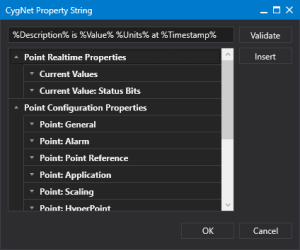
In the example below, the Text property for a control is configured as
%Description% is %Value% %Units% at %Timestamp%
which corresponds to the description of the point, the point value, its units, and timestamp. The items wrapped in the percent signs are tokens and will be replaced in run mode with the dynamic values. For example:
Gas Flow Rate is 1,033.41 MCFH at 2024/09/12 12:00:00.000
|
CygNet Property String dialog box |
- Click
 to see the point attributes for all CygNet points, grouped by point real-time properties, point configuration properties, and facility properties.
 - Find the desired attribute and double-click or click Insert to add the token to the text string.
- Add any static text to complete the text string.
- Click Validate to validate that the string is correctly configured with no mismatched percent signs.
- Or click OK to accept the string and close the dialog box.
- Click Cancel to close the dialog box without making any changes.
CygNet Help: For more information about using text tokens and dynamic text creation, see the Using Text Tokens topic: CygNet Studio> Using TheFrame/TheView > Working with Text > Using Text Tokens.