Image Selection
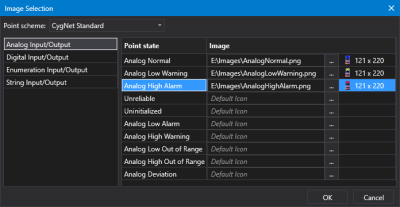
Use the Image Selection dialog box to configure CygNet-aware images that will dynamically change based on the point state of the associated point.
|
Sample Image Selection dialog box |
- Click
 to open Image Selection dialog box.
 - Select the appropriate Point scheme. The point scheme defines the point types, point alarms, point statuses, and default colors for a CygNet domain.
- Select the Point type to access the point states on the right. The point types are configured for the selected point scheme for your CygNet system. The default CygNet Standard Point Scheme has eight point types: Analog Input & Analog Output, Digital Input & Digital Output, Enumeration Input & Enumeration Output, and String Input & String Output.
- Click on the Point state for which you want to configure an image to use when the point state changes in the control. Point state is the highest precedented state for a point record as defined for each point scheme. The point state for a point record is based on 48 System, Configuration, and User status bits, which are associated with the four point types (Analog, Digital, String, Enumeration). A point record may contain up to 48 status bits, which are used to provide point status information about the point record in a CVS and the ELSALM. A point can be in multiple states at the same time, for example, in High Warning and High Alarm; however, the state defined to be the most severe is the one that is used for the point state (i.e., High Alarm, in this case).
- For each point state perform the following:
- Image — The Image property indicates the file path and file name of the image that will be substituted when the point state changes to the selected point state. Browse and select the desired image file. Click to select a path and file from the Open / Open File / Select File dialog box, where you can access: A thumbnail of the selected image, and its dimensions are displayed for each point state.
- Repeat for each point state.
- Image — The Image property indicates the file path and file name of the image that will be substituted when the point state changes to the selected point state. Browse and select the desired image file. Click
- To remove an image, delete the path in the Image field.
- Once the images are configured, click OK to save.
- Or click Cancel to abort and close the Image Selection dialog box.