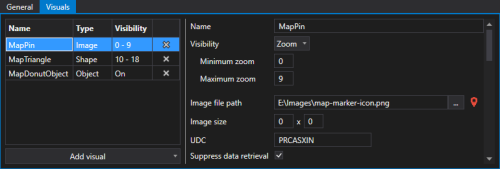
Layers > Visuals > Image Configuration
|
Sample Layer > Visuals > Image configuration |
- Find Layers in the Properties pane and click
 to open the Map Layer Configuration dialog box.
 - Click Add layer to add a new layer to the map.
- Select the new layer and configure the Common and Facility properties on the General tab.
- Select the Visuals tab.
- Click Add visual to add an item to the map layer. Select the visuals type from the drop-down menu: Image, Shape, or Object.
- For the Image visual type configure all desired properties in the groups in the pane on the right: Common, Image, Value, Display, Font, Tooltip, and Hyperlink.
- Click
 (Delete visual) to remove an item from the layer, as necessary.
 - Click (Delete layer) to remove a layer from the map, as necessary.
- Once the layers and visuals are configured, click OK to save.
- Or click Cancel to abort and close the Map Layer Configuration dialog box.