Navigator Menu Items
|
Sample Navigator Menu Configuration dialog box |
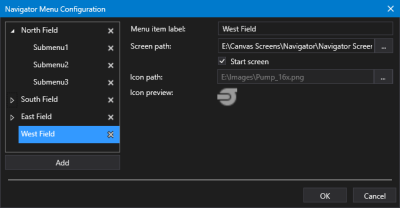
- Click
 to open Navigator Menu Configuration dialog box.
 - Click Add to add a top-level menu item.
- To add sub-menu items, select the top-level menu item and click Add. You can only add one nested level of navigation.
- Click
 to expand the top-level menu items.
 - For each menu item click on <New> to reveal the properties:
- Menu item label — The Menu item label property specifies the label for an item in the Navigator menu.
- Screen path —
The Screen path property specifies the screen that will open in the body of the Navigator when the menu item is clicked. Browse for the screen file.
Click
to select a path and file from the Open / Open File / Select File dialog box, where you can access: - BSS — Indicates that the file is stored in an APPS or BSS folder
- Local — Indicates that the file is stored in a local or network file-system folder.

The option is not available for top-level menu items with sub-menu items.
Note: This control only supports Canvas screens in CygNet v9.4 and later. It does not support the display of CygNet Studio screens (.csf).
- Start screen — The Start screen check box indicates that this screen will be displayed in the Navigator when first opened. The option is not available for top-level menu items with sub-menu items.
- Icon path — The Icon path property specifies the icon to display to the left of a top-level menu item. The Icon path field is read-only; you must use the Open Files dialog box to select a new icon. This option is not available for sub-menu items.
- Icon preview — The Icon preview property displays a preview of the selected icon. This option is not available for sub-menu items.
- Menu items can be easily reordered by dragging and dropping an item to a new location in the list.
- Or click
 (Delete menu item) to remove a selected menu item as necessary.
 - Once the navigation menu is configured, click OK to save.
- Or click Cancel to abort and close the Navigator Menu Configuration dialog box.