Note Grid Columns
|
Sample Note Grid Column Configuration dialog box |
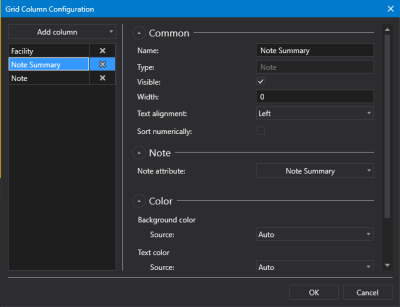
- Click
 to open the Grid Column Configuration dialog box.
 - Click Add column to add a new, blank column type from the drop-down menu: Facility Column or Note Column.
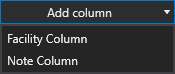
- Facility column — A facility column presents the facility associated with the note. You can choose to resolve the facility to a relative facility if desired.
- Note column — A note column presents the notes stored in the NOTE service filtered by note attribute.
- The Note Grid Column properties are grouped into several property groups: the Common and Color properties are shared by all column types, the Facility properties are available only to Facility columns, and the Note properties are available only to Note columns.
-
Click
 to expand each property group as necessary. Click
  to collapse each property group as necessary.
 - Complete the column configuration to suit your needs using the property groups described below:
- Common property group (All column types)
- Color property group (Facility, Generic, and Point columns)
- Facility property group (Facility column only)
- Note property group (Note column only)
- Repeat for each column.
- Reorder your columns by selecting, then dragging or dropping the column name to a new location in the column list.
- Or click
 (Delete column) to remove a column from the grid as necessary.
 - Once the desired columns are configured, click OK to save.
- Or click Cancel to abort and close the Grid Column Configuration dialog box.