Settings Pane
Each Canvas control has a Settings pane, which allows editing and manipulation of objects on your Canvas screen.
Select an object and the  (Settings) icon will appear to the right of the object. The content of this pane is described below.
Home Tab
The Home tab contains two sub-tabs: General and Arrange.
Home Tab, General Settings
The options on the General sub-tab provide access to standard clipboard and grouping operations for selected objects:
|
Settings pane, Home tab, General settings |

- copy — click to copy the selected object(s)
- cut — click to remove the selected object(s) and write to the clipboard
- paste — click to paste selected object(s) from the clipboard
- delete — click to delete the selected object(s)
- lock — click to lock the selected object(s) to the current position. A locked object cannot be moved via click and drag, or nudged with the arrow keys, or resized. The Lock property on the Properties pane will change accordingly.
- group — click to group the selected object(s)
- ungroup — click to ungroup the selected object(s)
Home Tab, Arrange Settings
The options on the Arrange sub-tab provide access to change the z-order and alignment of selected objects. Note that you can also set the z-order of screen objects using the Z index property in the Properties pane.
|
Settings pane, Home tab, Arrange settings |
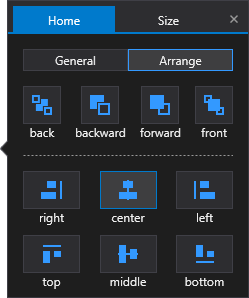
- back — click to move the selected object(s) to the back of a stack
- backward — click to move the selected object(s) backward past the next object in a stack
- forward — click to move the selected object(s) forward past the next object in a stack
- front — click to move the selected object(s) to the front of a stack
- right — click to align all selected objects along the right side
- center — click to horizontally align all selected objects along the center line
- left — click to align all selected objects along the left side
- top — click to align all selected objects along the top side
- middle — click to vertically align all selected objects along the middle line
- bottom — click to align all selected objects along the bottom side
Size Tab
The options on the Size tab provide access to manipulate the size and location of selected object(s). If more than one object is selected, the settings apply to all objects.
|
Settings pane, Size settings |

-
 — click the up-down arrows to expand the size of the object(s) horizontally by one pixel per click, or type a new value. The Width property on the Properties pane will change accordingly.
 -
 — click the up-down arrows to expand the size of the object(s) vertically by one pixel per click, or type a new value. The Height property on the Properties pane will change accordingly.
-
 — click the up-down arrows to move the object(s) along the horizontal axis, or type a new value. The X property on the Properties pane will change accordingly.
 -
 — click the up-down arrows to move the object(s) along the vertical axis, or type a new value. The Y property on the Properties pane will change accordingly.
Use the up, down, left, and right arrow keys to nudge a control by 1 pixel. Arrow moves a control by 1 pixel. Ctrl+Arrow moves a control by 10 pixels. Ctrl+Shift+Arrow moves a control by 100 pixels.