Time Range
Use the Configure Time Range dialog box to enable live data updates, set the live update rate, the starting time for a trend, whether to use relative or absolute dates, and the date range.
Live Updates
|
Canvas
|
TWC
|
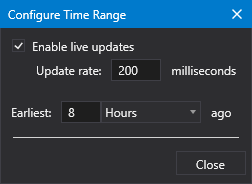
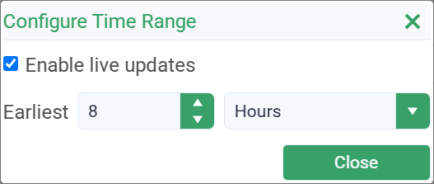
- Click Enable live updates to request new data at a specified interval allowing the chart to trend data at a real-time pace.
-
 Set the Update rate to specify the number of milliseconds to wait before an auto-updated trend refreshes.
 - Set the Earliest value to indicate the starting date for a trend; that is, the amount of time in the past from when to start the trend.
- Select the Earliest units to specify the unit of time in the past from when to start the trend. The options include: Seconds, Minutes, Hours, Days, and Years.
- Click Close to close the dialog box and save your settings.
Relative Dates
|
Canvas
|
TWC
|
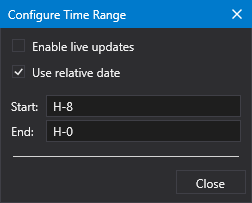
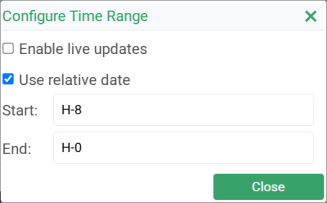
- Click Use relative date to use relative dates and time for the chart.
- Set the Start date by specifying a wildcard string defining the amount of time by which to adjust the start date and time.
- Set the End date by specifying a wildcard string defining the amount of time by which to adjust the end date and time.
- Click Close to close the dialog box and save your settings.
Absolute Dates
|
Canvas
|
TWC
|
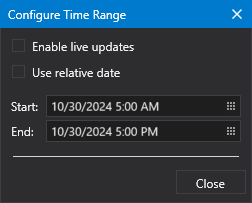
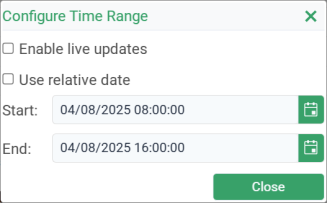
- Uncheck Enable live updates and Use relative date.
- Set the Start date by specifying the start date and time for a control for an absolute date and time view window.
- Set the End date by specifying the end date and time for a control for an absolute date and time view window.
- Click Close to close the dialog box and save your settings.