Tooltip Mode Options
All single point value Canvas controls support configurable tooltips. There are three options for the contents of the tooltip:
- plain and/or tokenized text that resolve to point and facility attributes
- a small object file, which can receive its facility tag from the control showing the tooltip
- a script option that fires a TooltipOpening event right before the tooltip opens creating a custom tooltip, which can show any desired information, for example, a value from an affiliated point, an unrelated data point, or even a CygNet note.
The type of tooltip is determined by the Tooltip mode property in the Properties pane:
To configure a Text Tooltip
|
A Text tooltip with a value for the facility |
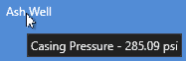
Perform the following steps to configure a Text Tooltip:
- Find the Tooltip properties in the Properties pane. Configure the following properties:
- Tooltip enabled — Click to enable the tooltip.
- Tooltip mode — Select Text from the drop-down menu.
- Tooltip — Click
 to configure the static text and/or property tokens using the CygNet Property String dialog box. Select text and token to be displayed in the tooltip.
To configure an object tooltip
|
An Object tooltip showing an object file |
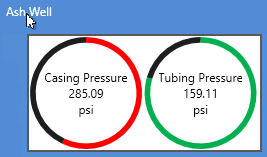
Perform the following steps to configure an object tooltip:
- Find the Tooltip properties in the Properties pane. Configure the following properties:
- Make an object file (.cob) to display in the tooltip. The facility can be passed in from the control displaying the tooltip.
- Tooltip enabled — Click to enable the tooltip.
- Tooltip mode — Select Object from the drop-down menu.
- Tooltip object path — Click to open the Open dialog box, where you can access an APPS or BSS folder or a local or network file-system folder. Select the Object file (.cob) that you want to display in the tooltip.
To configure a script tooltip
|
A Script tooltip showing a related value for the facility |
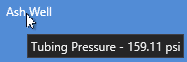
Perform the following steps to configure an object tooltip:
- Find the Tooltip properties in the Properties pane. Configure the following properties:
- Tooltip enabled — Click to enable the tooltip.
- Tooltip mode — Select Script from the drop-down menu.
- Add script to the screen for the TooltipOpening event to determine the content of the scripted tooltip.