UIS Command and Command Prompt
Configure the Command and Command Prompt properties.
Command
Perform the following steps to configure the general properties required by a UIS Command Button.
|
Command configuration box |
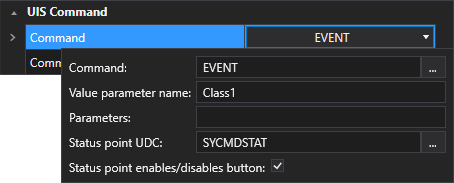
- Click
 on the Command property to reveal the following properties:
- Command — The Command property specifies the name of the UIS command for the facility as defined in the DDS. Click
 to select a UIS Command using the Select UIS Command dialog box.
 - Value parameter name —
The Value parameter name property specifies the name of the command's 'value' parameter: the component parameter for which the button is going to set a value. Refer to the command component parameters in the DDS for the actual component parameter name.
- Enter only the parameter name. A value(s) can be pre-defined in the Parameters property or the user can be prompted for a value by configuring the Command prompt property.
- Leave this field blank: 1) if the command and parameters are fully defined in the DDS; or 2) if all parameter names and their values are specified using the Parameters property.
- Parameters —
The Parameters property specifies the command’s parameter(s) and their values. That is, the component parameter for which the button is going to set a value. Typical parameters include values, start dates, end dates, and counts.
- Set the parameter value to a literal value (e.g., Value=100, where Value is the parameter name and 100 is its value).
Notes:
Refer to the command component parameters in the DDS for the actual component parameter name.
If the command in the DDS specifies a value for a parameter, the DDS value takes precedence and the value specified here is ignored.
Semicolon-delimited parameters (e.g., SDate=T-1;EDate=T) are accepted.
- Status point UDC — The optional Status point UDC property specifies the UDC of the status point used to monitor the status of a UIS command. A status point is a special CygNet point that is used to monitor the status of a UIS command. One purpose of the status point is to prevent users from repeatedly clicking the button and queuing up messages. See Status point enables/disabled button for more information about using a status point. Click to select a UDC using the Select UDC dialog box.
- Status point enables/disables button —
The optional Status point enables/disables button check box indicates whether to enable or disable the button while the command is in progress. If enabled and the button's command is in progress (that is, it’s in the communications queue), the value of the status point is set to "1:In Progress" and the button is disabled. The button remains disabled as long as the message is in the queue. Once the command fails or succeeds, the value of the status point is set to "2:Failed" or "3:Succeeded," respectively, and the button is re-enabled.
Click to enable or disable the button while the command is in progress.
- Command — The Command property specifies the name of the UIS command for the facility as defined in the DDS. Click
- If you want users to be prompted for a value for the command component parameter configure the next property: Command prompt.
Command Prompt
Perform the following steps to configure the prompt for value popup optionally required by a UIS Command Button.
|
Command prompt configuration box |
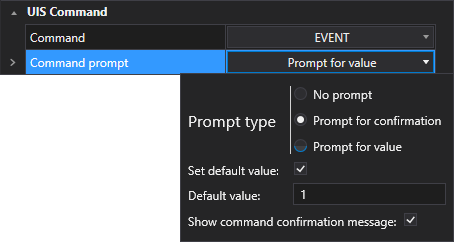
- Click on the Command prompt property to reveal the following properties:
- Prompt type —
The Prompt type property contains three radio buttons to indicate what type of prompt to display. Select the desired option:
- No prompt — No prompt will show and the UIS command will be sent when the button is clicked. This is the default option.
- Prompt for confirmation — A prompt will show asking the user to Confirm that they want to send the UIS command. If the user clicks Cancel the command is not sent.
- Prompt for value — A prompt will show asking the user to enter a parameter value for the command and then click Send to execute the command.
- Set default value — Click the Set default value check box to indicate whether to set a default value for the prompt.
- Default value — The Default value property is used to optionally specify the default value for the prompt. This can be a static value or the current value of a point. If specifying a current value it must be a fully qualified tag string. Enter a default value in the field.
- Show command confirmation message — Click the Show command confirmation message check box to indicate whether to display a confirmation message showing that the command was submitted to the UIS.
- Prompt type —