Restrict a Visual Item to a Zoom Range
Use the Visibility property to restrict the display of the visual item to a map's zoom range. By assigning different zoom ranges to different visual items you can change what is displayed as you zoom in and out of the map. For example, you could display an small image (e.g., a well icon) to designate facility locations when zoomed out to a state level, which could then change to display a Canvas object displaying additional facility information as you zoom into a neighborhood where facilities are located.
Note that the:
-
Canvas Native view supports all visual items: images, shapes, and objects.
-
CygNet TWC web view supports only images.
Zoom Out
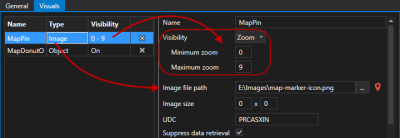
To display an image (e.g., a map pin) at facility locations when zoomed out to a state level, do the following:
- Set Visibility to Zoom.
- Set the Minimum zoom to 0 and Maximum zoom to 9.
- Specify the image to display at this zoom range in the Image file path property.
|
Display an image at this zoom range |
Zoom In
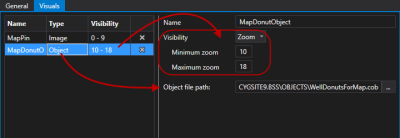
To display a Canvas object (e.g., a screen showing point values on a Donut control) at facility locations when zoomed into a neighborhood level, do the following
- Set Visibility to Zoom.
- Set the Minimum zoom to 10 and Maximum zoom to 18.
- Specify the object to display at this zoom range in the Object file path property.
|
Display an object at this zoom range |
Hide a Visual Item
To hide a configured visual item from view, set Visibility to Zoom and set the Minimum zoom and Maximum zoom to 0.