
The Canvas debugger allows you to observe the runtime behavior of your script and locate logic errors. With the debugger, you can break execution to step through your code and evaluate variables in your application. The debugger works with all Canvas programming languages.
On the Canvas toolbar, click  then Debug selected screen to open two screens:
- A Canvas Viewer dialog box representing the currently selected screen in debug mode, including logged details in the lower pane.
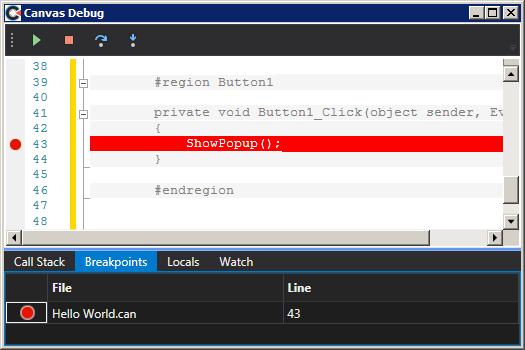
- A Canvas Debug dialog box showing a read-only copy of the script, which includes a toolbar of commands, and several panes to aid in debugging your code.
|
Sample debug screen |
Debug Toolbar
The Canvas Debug dialog box toolbar contains the following buttons, which correspond to the associated shortcut.
| Icon | Command Option | Description | Keyboard Shortcut |
|---|---|---|---|
|
|
Start debugging |
Run / debug the script. The screen preview dialog box becomes active. |
F5 |
|
|
Stop debugging |
Terminate the debug process. |
Shift+F5 |
|
|
Step over |
Execute a single instruction in the script. If the instruction is a function call, the whole function is executed. See To step over a function call for more information. |
F10 |
|
|
Step into |
Execute a single instruction in the script. If the instruction is a function call, the debugger steps into the function. See To step into a function call for more information. |
F11 |

Debug Panes
The Canvas Debug dialog box contains several panes that allow you to debug and interact with your script.
| Debug Panes | Description |
|---|---|
|
Call Stack |
The Call Stack pane displays call stack information, that is, the function or procedure calls that are currently on the stack. The pane shows the order in which methods and functions are getting called. The call stack is a good way to examine and understand the execution flow of your script. |
|
Breakpoints |
The Breakpoints pane displays a list of the active breakpoints in your script. See To set a function breakpoint for more information. |
|
Locals |
The Locals pane displays local variable values while in debug mode in the script editor. Local variables are those that are defined in the local scope, which is generally the function or method that is currently being executed and you can step through variables and watch them change. |
|
Watch |
The Watch pane is available to watch and evaluate variables and expressions while you are debugging. See To add a watch expression for more information. |
To set a function breakpoint
You can set breakpoints when you want to stop debugger execution, to see the state of code variables or to look at the call stack.
- Locate the line of code where you want to set a function breakpoint and click in the left margin of the script. The breakpoint appears as a red dot
 in the left margin, and the line of code is colored red as well. When you run this code in the debugger, execution stops whenever the breakpoint is hit, before the code on that line is executed. This command stops the process and its threads, enabling you to regain control of the debugger.
 - Breakpoints are displayed in the Breakpoints pane, listing the Canvas file name and the line number of the breakpoint.
- Breakpoints can be toggled by clicking in the editor margin.
- Delete the breakpoint by selecting the line in the Breakpoints pane and clicking Delete.
To step into a function call
Use the Step into command to execute code one statement at a time. Step into enters break mode at the current line of execution. If the statement is a call to a procedure, the next statement displayed is the first statement in the procedure. If there is no current execution point, the Step into command may appear to do nothing until you do something that triggers code, for example click on a document.
- Advance the execution point to the function call you want to step into.
- Select the function call you wish to examine and click Step into on the Debug toolbar (
 or F11) to execute a single instruction on the target. The debugger executes the function call and breaks at the beginning of the selected function. If the instruction is a function call, the debugger steps into the function.
To step over a function call
This command is like Step into. The difference in use occurs when the current statement contains a call to a procedure. Step over executes the procedure as a unit, and then steps to the next statement in the current procedure. Therefore, the next statement displayed is the next statement in the current procedure regardless of whether the current statement is a call to another procedure. Available in break mode only.
- Advance the execution point to the function call you want to step over.
- Select the function you wish to examine and click Step over on the Debug toolbar (
 or F10) to execute a single instruction on the target. If the instruction is a function call, the whole function is executed.
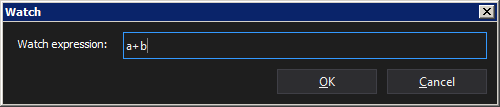
To add a watch expression
- Right-click and select Add Watch... and add a watch expression.
|
Sample watch expression |
- Right-click and select Edit Watch... to edit the watch expression.
- Right-click Delete Watch to remove the selected watch.


