Now that you have installed the CygNet Thin Web Client services, you are ready to prepare and publish applications using Canvas.
Build Screens
Use the design and screen-building components of the Canvas HMI client to build the screens to be viewed in the CygNet TWC web view. Use Canvas to layout HMI components onto a screen (a page of controls) and configure a logical workflow between controls and related screens.
Publish Applications
Once a set of screens is ready to be compiled into an application, use the configuration and publishing options in the Canvas Web Settings in the Backstage view.
Login to TWC
To connect to the TWC web server, use your favorite web browser to view the CygNet TWC site and your TWC applications via a secure connection. Use the following URL:
https://<server_name>:5001/<Application_Name>/<Domain ID>_<Site>_<Service>_<BSS_Folder_Name>_<File_Name>
- Or -
https://<server_name>:5001/<Application_Name>/<Short_Name>_<File_Name>
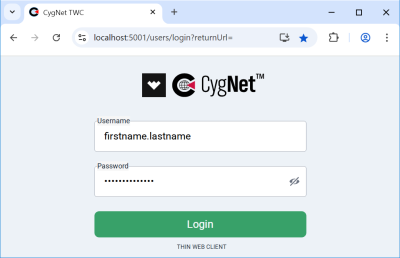
which will take you to the login page:
https://<server_name>:5001/users/login
-Or -
https://<server_name>:5001/users/login?returnUrl=
You will be prompted for login credentials (configured during installation), and upon successful authentication you will be directed to the Application Menu page of the CygNet TWC site.
|
CygNet TWC Login Page |