
The Totalflow EIE provides various ways to request history, depending on the Totalflow device model, the specified protocol, and the device's firmware version. DB1 and DB2 protocol devices issue history requests by contract day relative to the current day. The Totalflow G4 DB2 Enhanced option enables three ways to request history: by date/time range; by sequence number; and by contract day relative to the current day. The three data groups that define history requests are "History - Daily", "History - Event", and "History - Log Period".
For more information, see the following subsections below:
Totalflow devices using the DB1 or DB2 protocol retrieve history by contract day relative to the current day. You have two basic options for retrieving history:
The Get Latest feature retrieves history from the most recently cached history timestamp. After you use the Retrieve Data for Last n Contract Days option to poll history for the first time, a timestamp is cached in the remote device. The cached timestamp marks when the most recent poll occurred and when to begin the next Get Latest poll. After the initial poll, every time you poll using the Get Latest option a new most recent history timestamp is cached in the remote device. The only way you can establish a cached history timestamp after the initial history poll is by enabling the Get Latest option.
After the initial poll, when you use the Retrieve Data for Last n Contract Days option in conjunction with the Get Latest option, whichever date is most recent overrides the other date. For instance, if you enter a value of 6 for Retrieve Data for Last n Contract Days but your most recent timestamp only goes back 3 days, the poll returns only the most recent 3 days of history.
You have two basic options for retrieving DB1 and DB2 history: poll a single data group once and/or create a UIS command component.
To Poll a Single History Data Group Once
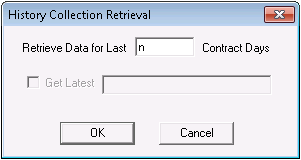
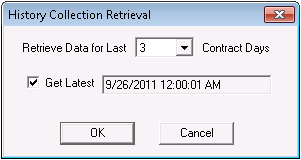
The following table lists and describes the properties found on the History Collection Retrieval dialog box.
| Property | Description |
|---|---|
|
Retrieve Data for Last Days |
Retrieves history from a specified number of past contract days up to the current contract day. A value of "1" returns data for the current contract day. Partial contract days are collected. A value of "0" does not make sense to the EIE. When you use the Retrieve Data for Last n Contract Days option in conjunction with the Get Latest option, whichever date is most recent overrides the other date. |
|
Get Latest |
Click to check to retrieve history from the most recently cached history timestamp, which displays in the Get Latest field. For this to work, you must poll the field device for the first time using the Retrieve Data for Last n Contract Days option; this establishes a cached timestamp. When you use the Retrieve Data for Last n Contract Days option in conjunction with the Get Latest option, whichever date is most recent overrides the other date. |
To Poll Using a UIS Command Component

For information about defining UIS commands in a device template file, see UIS Commands and Device Template Files.
Important: The DB2 Enhanced protocol only applies to CygNet v8.0.1 and a Totalflow G4 device with the correct firmware installed.
The Totalflow G4 DB2 Enhanced option enables three ways to request history: by time range; by sequence number; and by contract day relative to the current day. You have three basic options for retrieving history:
The Get Latest From feature is part of the Time Range option. The Get Latest From feature retrieves history from the most recently cached history timestamp. After you use one of the three options above to poll history for the first time, a timestamp is cached in the remote device. The cached timestamp marks when the most recent poll occurred and when to begin the next Get Latest From poll. After the initial poll, every time you poll using the Get Latest From option a new most recent history timestamp is cached in the remote device.
The only way you can establish a cached history timestamp after the initial history poll is by enabling the Get Latest From option. For instance, if you disable Get Latest From and enter a Start Time value and retrieve data, the data corresponds to the Start Time entered but the timestamp as indicated in the field beside Get Latest From does not change.
As with the DB1 and DB2 protocols, you have two basic options for retrieving DB2 Enhanced history: poll a single data group once and/or create a UIS command component. However, the DB2 Enhanced option provides several methods of defining parameters within these two basic options.
To Poll a Single History Data Group Once
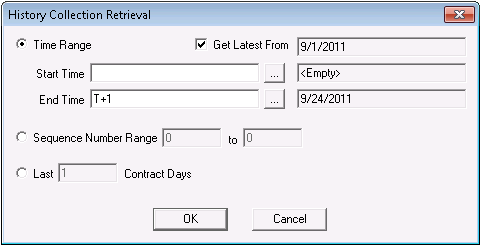
The following table lists and describes the properties found on the History Collection Retrieval dialog box.
| Property | Description |
|---|---|
|
Time Range |
Retrieves history for a user-specified time range. Start Time may be a user-defined value or the Get Latest From value. The Get Latest From value retrieves history from the most recently cached history timestamp and displays the latest timestamp in the Get Latest From field. The only way you can establish a cached history timestamp after the initial history poll is by enabling the Get Latest From option. You must always specify an End Date, regardless of how the start time is set. For more information, see Selecting Date and Time. |
|
Sequence Number Range n to n |
Retrieves history based on a Totalflow sequence number range. This feature is useful for troubleshooting. To display sequence numbers for a given history poll, click to check the Show All option on the respective history data group's data dialog box. For more information about Totalflow sequence numbers, see Totalflow documentation or contact a Totalflow representative. |
|
Last n Contract Days |
Retrieves history from a specified number of past contract days up to the current contract day. A value of "1" returns data for the current contract day. Partial contract days are collected. A value of "0" does not make sense to the EIE. |
To Poll Using a UIS Command Component

For information about defining UIS commands in a device template file, see UIS Commands and Device Template Files.
|
|
|

